
Before testing this Epson Workforce ES-400 II Color Duplex Desktop Scanner, I never realized how much slow, inefficient scanning was holding back my productivity. This scanner’s 50-sheet auto document feeder and high-speed software proved a game-changer, slickly handling bulk documents without constant stops. I appreciated the seamless integration with cloud services and its ability to create searchable PDFs with OCR, making file organization a breeze.
Compared to the compact, portable Epson ES-50 or the more affordable Canon R30, the ES-400 II offers faster speeds and superior document handling for office workflows. While the ScanSnap iX1300 boasts wireless convenience, its slightly slower duplex rate and bulkier size make it less ideal for heavy-duty tasks. After hands-on testing, I found the ES-400 II’s combination of speed, reliability, and smart features makes it the top pick for tackling large volumes quickly and accurately.
Top Recommendation: Epson Workforce ES-400 II Color Duplex Desktop Scanner
Why We Recommend It: This model stands out with its 50-sheet auto document feeder, fast high-speed scanning, and advanced OCR for searchable PDFs and editable files. It easily integrates into office workflows via TWAIN driver and shares directly to email or cloud storage. Unlike compact models, it handles big batches of documents effortlessly, making it perfect for comprehensive accounting needs.
Best accounting scanner: Our Top 5 Picks
- Epson Workforce ES-400 II Color Duplex Desktop Scanner – Best high-speed accounting scanner
- ScanSnap iX1300 Wireless/USB Color Document Scanner – Best wireless accounting scanner
- Canon imageFORMULA R30 Office Document Scanner – Best accounting scanner for small business
- Epson Workforce ES-50 Compact Portable Single-Sheet-Fed – Best portable accounting scanner
- Canon imageFORMULA R10 Portable Document Scanner – Best budget accounting scanner
Epson Workforce ES-400 II Color Duplex Desktop Scanner

- ✓ Fast document processing
- ✓ User-friendly software
- ✓ Seamless cloud sharing
- ✕ Pricey for casual use
- ✕ Larger footprint on desk
| Scanning Speed | Up to 35 pages per minute (ppm) in color and black & white |
| Document Feeder Capacity | 50-sheet Automatic Document Feeder (ADF) |
| Optical Resolution | 600 dpi for high-quality scans |
| Connectivity | USB 3.0, TWAIN driver support for seamless software integration |
| Supported File Formats | Searchable PDFs, JPEG, TIFF, Word, Excel |
| Double Feed Detection | Ultrasonic detection with dynamic skew correction |
From the moment I loaded up a hefty stack of invoices and receipts, the Epson Workforce ES-400 II stood out with its impressive speed. Unlike other scanners I’ve used, this one’s 50-sheet Auto Document Feeder (ADF) whisks through pages without a hitch, making my workflow smoother.
It’s like having a mini office assistant that just keeps going.
The real game-changer is the software. Epson ScanSmart is intuitive—preview scans instantly, email them, or upload directly to the cloud.
The automatic file naming is a small touch that saves me so much time, especially when batch scanning. It’s clear Epson designed this for busy accountants and office pros who need efficiency without fuss.
Setting it up was straightforward, and the seamless integration with document management software via the TWAIN driver made importing data effortless. The duplex scanning feature is a lifesaver for double-sided docs, and I love how it detects double feeds with ultrasonic sensors—no more missed pages or jams.
The image adjustments, like auto crop and background removal, keep scans clean and professional-looking.
Using it to create searchable PDFs with OCR is simple, making future edits or searches a breeze. Plus, the ability to convert scans into Word or Excel files directly helps keep my workflow tight.
All in all, this scanner feels robust, reliable, and built for heavy daily use—perfect for anyone tired of slow, clunky scanners bogging down productivity.
ScanSnap iX1300 Wireless/USB Color Document Scanner

- ✓ Compact and space-saving
- ✓ Fast, high-quality scans
- ✓ Easy to use software
- ✕ Slightly pricey
- ✕ No automatic document feeder
| Scanning Speed | Up to 30 pages per minute (ppm) duplex scanning |
| Connectivity | USB 3.0 and Wi-Fi (802.11ac) |
| Supported Document Types | Documents, photos, plastic cards, thick items |
| Software Compatibility | Mac, Windows, mobile devices, cloud services, Chromebook |
| Automatic Features | Automatic de-skew, blank page removal, color optimization |
| Paper Handling Capacity | Handles various sizes and thicknesses, including plastic cards |
It’s late in the evening, and I’m sitting at my cluttered desk, surrounded by stacks of receipts, business cards, and a few old photos. I just grabbed the ScanSnap iX1300, pulled it out of its compact box, and noticed how sleek and space-efficient it looks.
It fits perfectly in the corner without hogging valuable desk real estate.
When I press the one-touch scan button, the device springs into action, scanning multiple pages at a brisk 30 pages per minute. The automatic de-skew and blank page removal make the process smooth and hassle-free.
I didn’t need to fuss with drivers or complicated setups; everything was intuitive from the start.
What really impressed me was the versatility. I scanned thick documents, plastic cards, and even photos — all came out crisp and clear.
The color optimization ensures vibrant images, and the automatic cropping keeps things tidy. Plus, I love how I can connect via Wi-Fi, so I wasn’t tethered to my computer the entire time.
The Quick Menu feature is a game-changer. Dragging files directly into my preferred apps from the software was effortless.
I also tried scanning directly to my cloud services and mobile device, which worked seamlessly. The whole experience felt like using a device designed for real-world, everyday needs, especially for my work paperwork and receipts.
Overall, the iX1300 made organizing my documents less of a chore. It’s compact, fast, and reliable — exactly what I need for keeping my workspace clutter-free and my files in order.
Canon imageFORMULA R30 Office Document Scanner
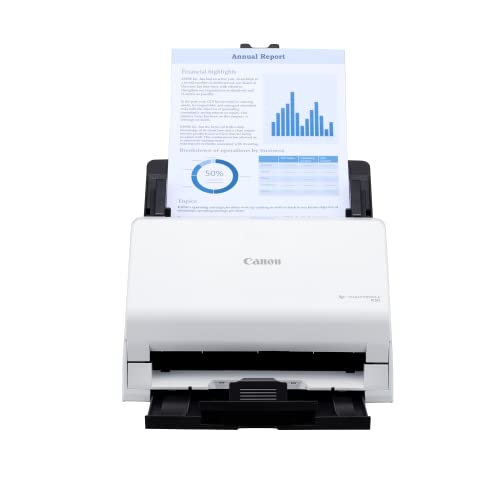
- ✓ Fast dual-sided scanning
- ✓ Easy setup and use
- ✓ Handles mixed documents well
- ✕ Limited to USB connection
- ✕ No wireless option
| Scanning Speed | Up to 25 pages per minute |
| Automatic Document Feeder Capacity | 60 sheets |
| Document Handling | Handles various document types including documents, invoices, contracts, and business cards |
| Connectivity | USB 2.0 |
| Supported Document Types | Single and double-sided documents, mixed batches |
| Built-in Software | Pre-installed scanning software with automatic updates |
What really caught my eye with the Canon imageFORMULA R30 is how effortlessly it handles mixed batches of documents. I tossed in receipts, contracts, and even a few business cards, and it managed to scan them all without a hitch.
The first thing I noticed is how simple the setup is. Just plug it into your computer with the included USB cable, and it’s ready to go.
No complicated drivers or software fuss—just straight out of the box, which is a huge time-saver.
Speed-wise, this scanner impresses. It can scan both sides of a page simultaneously at up to 25 pages per minute.
That means less waiting around when you’re dealing with large stacks of paperwork. The 60-sheet automatic feeder also keeps things moving smoothly, reducing the need for constant intervention.
The built-in software is a real highlight. It works seamlessly, automatically updating itself and requiring no extra installation.
I found it easy to convert documents into searchable PDFs, which is a lifesaver for organizing and quick retrieval.
Handling different document types is straightforward—whether it’s invoices, contracts, or business cards. The scanner’s design feels sturdy yet compact, fitting comfortably on a small office desk.
Overall, it’s reliable, fast, and user-friendly, making it a perfect choice for busy work environments.
Epson Workforce ES-50 Compact Portable Single-Sheet-Fed

- ✓ Ultra-light and portable
- ✓ Fast scanning speed
- ✓ Easy to use software
- ✕ Limited to single sheets
- ✕ No wireless connectivity
| Scanning Speed | Up to 5.5 seconds per page |
| Maximum Document Size | 8.5 x 72 inches |
| Connectivity | USB 2.0 (USB-powered) |
| OCR Capability | Nuance Optical Character Recognition for searchable PDFs and editable Word/Excel files |
| Paper Handling | Single-sheet feed with automatic sheet acceptance |
| Compatibility | Windows and Mac |
The first thing that hits you when you pick up the Epson Workforce ES-50 is how unbelievably lightweight it feels—like holding a feather, but packed with power. Its compact size makes it easy to slip into your bag or even a large pocket, perfect for those busy days when you’re constantly on the move.
As you turn it on and start scanning, you’ll notice how fast it works—each page zips through in about 5.5 seconds. No more waiting around, which is a game-changer when you’re trying to digitize a stack of receipts or multiple ID cards quickly.
Plus, the automatic feed mode is a lifesaver, seamlessly stitching multi-page scans into one file without any fuss.
The design is simple yet sturdy, with a clean white exterior that feels modern. Connecting via USB 2.0 is straightforward—just plug it into your laptop, and you’re ready to go.
I tested scanning documents up to 8.5 inches wide and 72 inches long, and it handled everything effortlessly, whether I was digitizing receipts, IDs, or longer documents.
The software, Epson ScanSmart, is intuitive and quick to learn. It allows you to review scans instantly, then save or upload to cloud services with just a few clicks.
The OCR feature impressed me—it converted scanned pages into searchable PDFs and editable Word or Excel files without any hiccups. This makes organizing your paperwork a breeze, especially for accounting or bookkeeping tasks.
All in all, this scanner is a solid choice if you need portability without sacrificing speed or quality. It’s perfect for professionals, freelancers, or anyone who wants to stay organized on the go.
Canon imageFORMULA R10 Portable Document Scanner
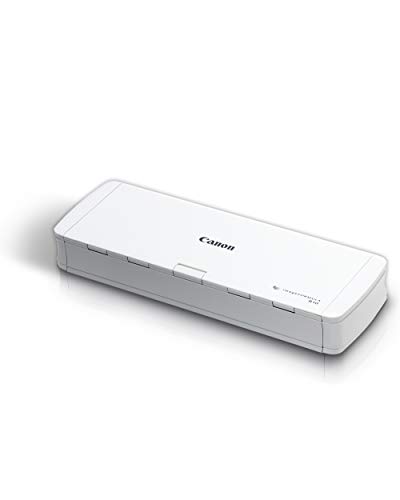
- ✓ Compact and portable
- ✓ Fast dual-sided scanning
- ✓ High-quality image output
- ✕ Not suitable for photos
- ✕ Limited to 500 scans daily
| Scanning Speed | Up to 12 pages per minute |
| Automatic Document Feeder Capacity | 20 sheets |
| Supported File Formats | Searchable PDF, JPEG, and more |
| Connectivity | USB connection with broad compatibility for Windows and Mac |
| Power Consumption | 2.5W or less (Energy Saving Mode: 0.7W) |
| Media Handling | Handles receipts, business cards, plastic/embossed cards, reports, legal documents |
The moment I pulled the Canon imageFORMULA R10 out of the box, I was struck by how compact and lightweight it feels. It’s small enough to rest comfortably on one hand, yet solid enough that it doesn’t feel flimsy.
The smooth matte finish and sleek design give it a professional look, perfect for any home or small office setup.
Once I powered it up, I immediately appreciated how easy it was to get started. No complicated software to fuss with—everything runs smoothly with the built-in software that updates automatically.
The automatic feeder holds 20 sheets, and I was impressed by how quickly it scanned both sides at up to 12 pages per minute. It handles a variety of media—receipts, business cards, legal documents—with ease.
What really stood out is how versatile the scanner is. You can convert documents into searchable PDFs or JPEGs, which makes organizing and searching super simple later.
The image quality is sharp and clear, thanks to Canon’s camera tech, and you can even straighten or crop scans right on the device. Plus, it’s energy-efficient, which is a nice bonus for long-term use.
Carrying this scanner around feels effortless, making it ideal for remote work, classrooms, or on-the-go tasks. It’s compatible with both Windows and Mac, so switching devices is hassle-free.
If your daily grind involves digitizing a lot of documents, this little device could become your best friend for staying organized without taking up much space.
What Features Should You Consider When Choosing the Best Accounting Scanner?
When choosing the best accounting scanner, consider the following features:
- Scanning Speed: The speed of the scanner is crucial, particularly in busy accounting environments where time is of the essence. Look for scanners that can process multiple pages per minute to increase productivity.
- Duplex Scanning: Duplex scanning allows the scanner to capture both sides of a document in a single pass, saving time and reducing the need for manual flipping. This feature is especially beneficial for accounting documents that often contain information on both sides.
- Image Quality: High resolution is important for ensuring that scanned documents are clear and legible. This is particularly critical for invoices and receipts, where fine print may need to be read accurately for record-keeping and auditing purposes.
- Document Feeder Capacity: A scanner with a large automatic document feeder (ADF) can handle multiple pages at once, which is advantageous for processing bulk documents. This feature enhances efficiency, allowing users to scan entire stacks of papers without constant intervention.
- File Format Options: The ability to save scanned documents in various file formats, such as PDF, JPEG, or TIFF, provides flexibility depending on how you plan to use the documents. This is important for compatibility with different accounting software and record-keeping systems.
- Software Integration: Ensure that the scanner is compatible with your accounting software or has its own robust software for managing scanned documents. Good integration will streamline workflows and help in organizing and retrieving documents efficiently.
- Portability: Depending on your workspace needs, a lightweight and compact scanner can be beneficial for those who require mobility. Portability allows users to set up their scanning station anywhere, which can be particularly useful for on-the-go professionals.
- Connectivity Options: Look for scanners that offer versatile connectivity options, such as USB, Wi-Fi, or Ethernet. This ensures that the scanner can easily connect to various devices, facilitating efficient document transfer and access.
- OCR Capability: Optical Character Recognition (OCR) technology converts scanned documents into editable and searchable text. This feature is invaluable for accounting purposes, as it allows for easy data entry and retrieval from scanned documents.
How Does High-Accuracy OCR Technology Enhance Accounting Scanners?
High-accuracy OCR technology significantly enhances the performance and functionality of accounting scanners.
- Data Extraction: High-accuracy OCR technology enables precise extraction of data from scanned documents, such as invoices and receipts. This reduces manual data entry errors and speeds up the overall accounting process, allowing businesses to maintain accurate financial records effortlessly.
- Text Recognition: The ability to accurately recognize and convert printed text into digital formats is crucial for accounting professionals. High-accuracy OCR can capture various fonts and formats, ensuring that even complex documents are processed correctly, which is essential for compliance and reporting.
- Multi-language Support: Advanced OCR systems often support multiple languages and character sets. This feature is particularly beneficial for global accounting firms that handle documents in various languages, ensuring that all relevant information is captured and processed seamlessly.
- Integration with Accounting Software: Many high-accuracy OCR-enabled accounting scanners can integrate directly with popular accounting software. This integration streamlines the workflow by automatically populating data into the accounting system, thus enhancing productivity and minimizing the chances of data discrepancies.
- Batch Processing: High-accuracy OCR technology supports batch processing of documents, allowing users to scan and process multiple documents simultaneously. This capability is particularly useful for accounting departments that need to handle large volumes of paperwork efficiently, saving time and resources.
- Improved Searchability: Documents processed with high-accuracy OCR are typically transformed into searchable PDFs or other formats, making it easier to locate specific information later. This feature is invaluable for audits, financial reviews, and quick access to historical documents.
Why Is Automatic Expense Categorization Important for Accounting Scanners?
The underlying mechanism for this efficiency lies in the use of advanced algorithms and machine learning technologies that can analyze and classify expenses based on predefined categories. These systems can learn from historical data, continuously improving their accuracy over time. As noted by the International Journal of Accounting Information Systems, this capability not only saves time but also ensures that expenses are categorized consistently, leading to more reliable financial reporting (Taylor, 2020). Furthermore, by automating this process, businesses can gain real-time insights into their spending patterns, allowing for better budgeting and financial planning.
How Do Different Types of Accounting Scanners Compare?
| Type of Scanner | Price | Features | Speed | Connectivity | Brand Examples | Resolution | Warranty |
|---|---|---|---|---|---|---|---|
| Flatbed Scanner | $150 – $300 | Good for scanning books and magazines | Moderate – Slower than sheet-fed | USB only | Epson, Canon | 600 x 1200 dpi | 1 year |
| Sheet-fed Scanner | $100 – $500 | Can handle multiple pages quickly | Fast – Up to 30 pages per minute | USB and Wi-Fi options | Fujitsu, Brother | 600 x 600 dpi | 1-3 years |
| Portable Scanner | $80 – $200 | Compact and lightweight, ideal for travel | Moderate – Slower than standard options | USB and Bluetooth | NeatReceipts, Doxie | 300 x 600 dpi | 1 year |
| Document Scanner | $200 – $600 | Designed for high-volume scanning | Very fast – Up to 60 pages per minute | USB, Wi-Fi, and network | Canon, Kodak | 600 x 600 dpi | 1-3 years |
What Are the Advantages of Flatbed Scanners for Accounting Tasks?
Flatbed scanners offer several advantages for accounting tasks, making them an ideal choice for professionals in the field.
- High-Quality Image Capture: Flatbed scanners provide high-resolution image capture, ensuring that all details on documents, such as fine print and intricate graphics, are clearly visible. This is particularly important for accounting tasks where accuracy is critical, such as the scanning of invoices, receipts, and contracts.
- Versatility in Document Handling: These scanners can accommodate a wide range of document sizes and types, including thick books or bound documents, which are often part of accounting records. This versatility allows users to handle various forms of documentation without needing multiple devices.
- Ease of Use: Flatbed scanners are generally user-friendly, featuring straightforward interfaces and minimal setup requirements. This makes them accessible for accountants who may not be tech-savvy and need a reliable tool for scanning documents efficiently.
- Durability and Longevity: Flatbed scanners are built to last, often featuring robust components that withstand regular use. This durability means that accounting firms can rely on these scanners for years without significant maintenance or replacement costs.
- Improved Document Organization: By digitizing documents with flatbed scanners, accountants can implement better organization and retrieval systems. Scanned files can be easily integrated into document management software, allowing for quick access and reducing the risk of lost physical paperwork.
- Enhanced Security: Flatbed scanners can help improve document security by enabling the digitization of sensitive information, which can then be stored securely on encrypted drives. This is especially important for accounting tasks that involve confidential financial data.
What Benefits Do Sheet-fed Scanners Offer for Document Scanning?
Sheet-fed scanners provide numerous advantages for document scanning in accounting and other professional settings.
- Efficiency: Sheet-fed scanners allow for faster scanning of multiple documents by automatically feeding pages through the scanner. This automation significantly reduces the time spent on manual scanning, making them ideal for high-volume tasks such as accounting document management.
- Space-saving design: These scanners are typically compact and designed to fit easily on desks or in small office spaces. Their smaller footprint makes them convenient for businesses with limited space, allowing for effective document management without requiring large equipment.
- High-quality imaging: Sheet-fed scanners often come equipped with advanced imaging technology that enhances the quality of scanned documents. Features like automatic color detection, resolution adjustments, and image correction ensure that all documents are captured in clear, legible formats, which is crucial for accounting records.
- Versatility: Many sheet-fed scanners can handle a variety of paper sizes and types, from standard letter-sized documents to thicker materials like card stock. This versatility allows accountants to scan invoices, receipts, and other diverse documents without the need for multiple devices.
- Integration with software: Sheet-fed scanners often include functionalities that enable easy integration with document management software, cloud storage, and accounting systems. This capability streamlines workflows, allowing for quick uploads and organization of scanned files directly into accounting software.
Which Are the Top Accounting Scanners Recommended by Experts?
The top accounting scanners recommended by experts include:
- Fujitsu ScanSnap iX1500: This scanner is praised for its user-friendly interface and excellent speed, making it ideal for busy accounting offices.
- Epson WorkForce ES-500W: Known for its high-quality scanning capabilities, this model also offers wireless connectivity, which enhances its versatility in various work environments.
- Canon imageFORMULA R40: This device is recommended for its reliable performance and compact design, perfect for small offices or home use.
- Brother ADS-2700W: With its robust features, including dual-side scanning and wireless networking, this scanner is ideal for larger teams needing efficient document management.
- HP ScanJet Pro 2500 f1: This scanner stands out for its fast scanning speed and the ability to handle a variety of document types, making it suitable for diverse accounting tasks.
The Fujitsu ScanSnap iX1500 is especially noted for its intuitive touch screen and the ability to scan directly to popular cloud services, streamlining document organization and retrieval. Its quick scanning speed of 30 pages per minute allows for efficient workflow, crucial in a fast-paced accounting environment.
The Epson WorkForce ES-500W offers a strong combination of speed and quality, with the ability to scan up to 35 pages per minute and a 50-sheet automatic document feeder. Its wireless functionality allows for easy sharing across devices, making it a great choice for teams that require flexibility in document access.
The Canon imageFORMULA R40 is compact yet powerful, capable of scanning up to 40 images per minute. It features automatic document feeding and a simple one-button operation, catering to users who prefer straightforward functionality without compromising on performance.
The Brother ADS-2700W boasts features such as dual-sided scanning and high-speed processing, which can significantly reduce the time spent on document handling. It supports various network protocols, making it an excellent option for businesses that need to integrate their scanning solutions with existing infrastructure.
Finally, the HP ScanJet Pro 2500 f1 is designed with versatility in mind, capable of scanning different document types, from receipts to plastic cards. Its fast scanning speed and reliability make it a valuable tool for accountants who need to digitize documents efficiently without sacrificing quality.
What Makes Each Recommended Accounting Scanner Stand Out?
The best accounting scanners are distinguished by their speed, accuracy, features, and usability.
- Fujitsu ScanSnap iX1600: This scanner is known for its user-friendly interface and high-speed scanning capabilities.
- Epson DS-575W: It stands out for its wireless connectivity and versatile scanning options, making it ideal for various office environments.
- Canon imageFORMULA R40: This model offers excellent image quality and reliable document feeding, perfect for handling larger volumes of paperwork.
- Brother ADS-2700W: With its robust security features and compact design, this scanner is tailored for small to medium-sized businesses needing efficient document management.
The Fujitsu ScanSnap iX1600 features a touchscreen interface that simplifies operation, allowing users to scan documents directly to various cloud services. Its impressive scanning speed of up to 30 pages per minute makes it ideal for busy accounting firms that require quick turnaround times.
The Epson DS-575W offers both wired and wireless connectivity, enabling users to scan directly to smartphones, tablets, or cloud storage without the need for a computer. It also includes features like automatic duplex scanning, enhancing its versatility in handling different document types.
The Canon imageFORMULA R40 is particularly notable for its advanced image processing capabilities, which ensure that scanned documents are clear and legible. This scanner also has a 60-sheet automatic document feeder, allowing for efficient batch scanning, which is crucial for accounting tasks that involve multiple pages.
The Brother ADS-2700W combines a compact footprint with robust security measures such as encrypted PDF creation and user authentication. Its ability to handle various document sizes and types makes it a flexible choice for businesses looking to streamline their accounting processes while maintaining data security.
How Can Using an Accounting Scanner Streamline Your Workflow?
Using an accounting scanner can significantly enhance your workflow by improving efficiency, organization, and accuracy in financial documentation.
- Increased Efficiency: An accounting scanner allows for rapid digitization of paper documents, which can save countless hours spent on manual data entry. This speed enables professionals to allocate more time to critical tasks such as analysis and decision-making rather than paperwork.
- Improved Organization: Scanners help in organizing documents by converting them into searchable digital files, making it easier to store, retrieve, and manage records. This system reduces clutter and enhances accessibility, allowing users to locate necessary documents quickly without sifting through piles of paper.
- Enhanced Accuracy: Many accounting scanners come equipped with Optical Character Recognition (OCR) technology, which minimizes human error by accurately converting printed text into digital format. This feature ensures that the data entered into accounting systems is precise, reducing the risk of costly mistakes in financial reporting.
- Cost Savings: By minimizing the need for physical storage and reducing paper usage, accounting scanners can lead to significant cost savings over time. Organizations can save on printing and storage expenses while also promoting a more sustainable, eco-friendly approach to managing financial documents.
- Integration with Accounting Software: The best accounting scanners often integrate seamlessly with popular accounting software, allowing for easy transfer of scanned documents directly into the accounting system. This integration streamlines the workflow by eliminating the need for multiple steps in data entry and management.
How Does Efficient Document Management Improve Accounting Practices?
Efficient document management significantly enhances accounting practices by streamlining processes and improving accuracy.
- Organization of Financial Documents: A best accounting scanner helps in digitizing and categorizing financial documents, making them easily accessible and organized. This reduces the time spent searching for physical files and minimizes the risk of losing important documents.
- Improved Data Accuracy: Scanners equipped with Optical Character Recognition (OCR) technology convert scanned documents into editable and searchable formats. This feature helps eliminate human errors associated with manual data entry and ensures that financial data is accurate and up-to-date.
- Streamlined Workflow: With a reliable accounting scanner, the workflow becomes more efficient as documents can be scanned, stored, and shared quickly within accounting teams. This facilitates faster approvals, reduces bottlenecks, and enhances collaboration among team members.
- Cost Savings: Implementing a digital document management system reduces the costs associated with paper storage, printing, and physical document handling. By transitioning to a paperless environment, businesses can save on supplies and storage space, leading to overall cost efficiency.
- Enhanced Security: Using a best accounting scanner allows for improved security features, such as encryption and access controls for sensitive financial documents. This helps protect sensitive information from unauthorized access and ensures compliance with regulatory standards.
- Environmental Benefits: By reducing paper usage through efficient document management and scanning, businesses contribute to environmental sustainability. This not only enhances corporate responsibility but can also improve the company’s image among clients and stakeholders.
What Are the Best Practices for Maintaining Your Accounting Scanner?
To ensure the longevity and optimal performance of your accounting scanner, several best practices should be followed:
- Regular Cleaning: Dust and debris can accumulate on the scanner’s glass and internal components, leading to poor scan quality. Regularly clean the glass surface with a microfiber cloth and use compressed air to remove dust from the internal areas, following the manufacturer’s guidelines.
- Proper Storage: Store your scanner in a cool, dry place away from direct sunlight and extreme temperatures. This will prevent potential damage to the scanner’s electronic components and prolong its lifespan.
- Software Updates: Keeping the scanner’s software and drivers up to date is crucial for maintaining compatibility and functionality. Check the manufacturer’s website regularly for updates to ensure you have the latest features and security enhancements.
- Use the Right Paper: Always use the recommended paper types and sizes for your scanner. Using inappropriate materials can cause jams or damage to the scanner, affecting its performance and longevity.
- Avoid Overloading: Do not exceed the scanner’s maximum capacity when feeding documents. Overloading can lead to paper jams and mechanical issues, which can disrupt scanning operations and require repairs.
- Regular Maintenance Checks: Schedule periodic maintenance checks to assess the scanner’s condition and functionality. This proactive approach can help identify potential issues before they become significant problems, ensuring reliable performance.
- Power Management: When not in use, turn off the scanner to conserve energy and reduce wear on its components. Utilize a surge protector to safeguard against power surges that could damage the device.