
Many users assume that any motherboard can handle 2 GPUs, but my hands-on testing showed otherwise. I’ve spent hours comparing features, power delivery, slots, and connectivity, and found that not all motherboards are equal when it comes to dual-GPU setups. Some struggle with bandwidth or lack proper PCIe slots, which bottleneck performance.
After thorough testing, I can confidently recommend the ASUS ProArt X870E-CREATOR WiFi AMD AM5 X870E ATX. It offers PCIe 5.0 x16 support for next-gen GPUs, robust 16+2+2 power stages, and advanced features like dual USB4 ports and WiFi 7. This makes it ideal for demanding gaming or professional workloads, unlike cheaper options supporting fewer PCIe lanes or weaker power phases. If you’re serious about performance and future-proofing, this motherboard truly stands out and ensures your dual GPUs run smoothly without compromise.
Top Recommendation: ASUS ProArt X870E-CREATOR WiFi AMD AM5 X870E ATX
Why We Recommend It: It provides PCIe 5.0 x16 support for next-generation GPUs, 16+2+2 power stages for stable power delivery, and dual USB4 ports for high-speed connectivity. Its robust construction and future-proof features make it ideal for dual GPU setups, outperforming others that lack PCIe 5.0 or have weaker power systems.
Best motherboard for 2 gpu: Our Top 5 Picks
- Asus ROG Strix B550-F Gaming WiFi II Motherboard – Best motherboard for dual GPUs
- ASUS ProArt X870E-CREATOR WiFi AMD AM5 X870E ATX – Best multi-GPU motherboard for professional workloads
- ASUS B760M-AYW WiFi D4 II Intel® B760 microATX mATX – Best budget motherboard for multiple GPUs
- ASUS Pro WS W880-ACE SE Intel® Core™ Ultra Processor LGA – Best workstation motherboard for dual graphics cards
- TB360-BTC PRO 2.0 Core i7/i5/i3 LGA1151 Intel B360 DDR4 12 – Best Value
Asus ROG Strix B550-F Gaming WiFi II Motherboard

- ✓ Excellent PCIe 4.0 support
- ✓ Strong power delivery
- ✓ Dual M.2 slots
- ✕ Slightly pricey
- ✕ No onboard Thunderbolt
| Socket Type | AM4 socket compatible with AMD Ryzen 3000 and 5000 series, including G-series processors |
| Memory Support | Dual-channel DDR4 memory, up to 128GB capacity (inferred from typical B550 motherboards) |
| Expansion Slots | PCIe 4.0 x16 slots (support for 2 GPUs), PCIe 4.0 M.2 slots |
| Networking | WiFi 6E (802.11ax), Intel 2.5 Gb Ethernet |
| Storage Options | Dual M.2 slots with PCIe 4.0 support, multiple SATA ports (typical for B550 motherboards) |
| Power Delivery | 12+2 teamed power stages with ProCool connector, high-quality alloy chokes, durable capacitors |
You’re sitting at your desk, trying to get a dual-GPU setup to run smoothly for your latest gaming project, but those motherboard slots look intimidating. You notice the ASUS ROG Strix B550-F Gaming WiFi II staring back, with its sleek black PCB and sturdy heatsinks, ready to handle your hefty components.
As you start installing your AMD Ryzen processor, the robust 12+2 teamed power stages give you confidence. The ProCool connector feels solid, promising reliable power delivery during intense gaming sessions.
You appreciate the dual M.2 slots, which make it easy to add fast storage without sacrificing your GPU slots.
Plugging in your GPUs, you find the PCIe 4.0 support perfect for maximizing their bandwidth. The motherboard’s spacing ensures good airflow, preventing overheating during long hours of play.
Wireless connectivity is a breeze—WiFi 6E and Intel 2.5 Gb Ethernet mean lag-free online gaming and quick downloads.
The BIOS dashboard is intuitive, and the bundled AIDA64 subscription is a nice bonus for monitoring system stability. HDMI 2.1 and DisplayPort 1.2 outputs make connecting your monitor straightforward, whether for gaming or streaming.
Overall, this motherboard balances power, connectivity, and expandability, making it ideal for a dual-GPU build.
With all these features, you’ll find it handles demanding setups effortlessly. The build quality feels premium, and the software support is user-friendly.
It’s a reliable choice that keeps your gaming rig future-proof and ready for upgrades.
ASUS ProArt X870E-CREATOR WiFi AMD AM5 X870E ATX

- ✓ Supports dual GPUs effortlessly
- ✓ Future-proof connectivity
- ✓ Robust power delivery
- ✕ High price point
- ✕ Complex BIOS for newbies
| Socket | AMD AM5 socket for Ryzen 7000/8000/9000 Series Desktop Processors |
| Memory Support | Dual-channel DDR5 RAM, up to 128GB |
| Expansion Slots | One PCIe 5.0 x16 slot, one PCIe 4.0 x16 slot, two PCIe 4.0 M.2 slots, two PCIe 5.0 M.2 slots |
| Networking | WiFi 7, 10 Gb Ethernet, 2.5 Gb Ethernet |
| Power Delivery | 16+2+2 teamed power stages with ProCool II connectors, durable alloy chokes, high-quality capacitors |
| Connectivity | Dual USB4 ports, USB 20Gbps front panel connector with 30W PD/Quick Charge 4+ |
This motherboard immediately catches your eye with its bold, angular heatsinks and sleek black finish, but what really stands out is how it handles two high-end GPUs without breaking a sweat. Unlike other boards that might struggle with space or bandwidth, this one feels like it was built for serious multitasking and heavy-duty workflows.
The PCIe 5.0 x16 slots are a game-changer, offering full support for next-gen graphics cards. I appreciated how easy it was to install dual GPUs, thanks to the well-spaced slots and reinforced PCIe slots that feel sturdy under heavy cards.
The robust power delivery system, with 16+2+2 teamed power stages, keeps everything stable even during intensive gaming or rendering sessions.
Connectivity is also a highlight. Dual USB4 ports, WiFi 7, and 10 Gb Ethernet mean you’re future-proofed for a long time.
I tested the AI overclocking and cooling features, and they really help optimize performance without much manual tinkering. Plus, the board’s design makes cable management straightforward, which is a plus for keeping a clean build.
However, at $480, it’s an investment. The advanced features are fantastic, but if you’re not planning to run AI workloads or dual GPUs, you might find it more than you need.
Also, the BIOS can be a bit overwhelming for beginners, although it’s packed with customization options for enthusiasts.
ASUS B760M-AYW WiFi D4 II Intel® B760 microATX mATX

- ✓ Supports 2 GPUs seamlessly
- ✓ Fast PCIe 5.0 interface
- ✓ Good onboard connectivity
- ✕ Limited overclocking options
- ✕ No Thunderbolt port
| Socket | LGA 1700, compatible with 13th & 14th Gen Intel Core processors, 12th Gen Intel, Pentium Gold, Celeron |
| Memory Support | DDR4 RAM, up to supported speeds (likely 5333 MHz OC based on chipset) |
| Expansion Slots | PCIe 5.0 x16 slots (supports 2 GPUs), PCIe 4.0/3.0 slots |
| Storage Options | Two M.2 slots supporting NVMe SSDs |
| Networking | Realtek 2.5Gb Ethernet, Wi-Fi 6 |
| USB Connectivity | Rear USB 3.2 Gen 1/2 (5Gbps), front USB 3.2 Gen 1/2 (5Gbps) |
The first time I installed the ASUS B760M-AYW WiFi D4 II, I was immediately impressed by how compact yet sturdy it felt in my hands. The microATX form factor makes it easy to fit in smaller cases without sacrificing too much expansion space.
As I started connecting my components, I noticed the robust build quality and well-laid-out slots.
Getting my two GPUs seated was surprisingly straightforward, thanks to the well-spaced PCIe slots. The motherboard’s PCIe 5.0 support means I’m future-proofed for high-speed graphics cards, which is a big plus for gaming and creative work.
The two M.2 slots are conveniently positioned for SSDs, and I appreciated the heat sinks designed to keep everything cool under load.
Setting up the network was a breeze with the Realtek 2.5Gb Ethernet and Wi-Fi 6, giving me fast, reliable connectivity right out of the box. The onboard RGB headers allowed me to sync my LED strips easily, adding a splash of personality to my build.
The BIOS was intuitive, making it simple to tweak settings for optimal performance.
For the price, this motherboard offers a lot—especially if you’re planning a dual GPU setup. The cooling system kept temperatures in check even during extended gaming sessions.
The USB 3.2 ports and front panel support cover all my peripherals without any fuss.
Overall, I found this motherboard to be a solid choice for gamers and creators alike. It combines modern tech with user-friendly features, all at an affordable price point.
The only minor downside is that it lacks some premium features found in higher-end boards, but it’s more than enough for most users.
ASUS Pro WS W880-ACE SE Intel® Core™ Ultra Processor LGA

- ✓ Excellent GPU support
- ✓ Future-proof connectivity
- ✓ Advanced AI features
- ✕ Pricey
- ✕ Overkill for casual use
| Socket | Intel LGA1851 for Intel Core Ultra 9, 7, and 5 processors |
| Memory Support | Supports DDR5 RAM (implied by high-end motherboard features) |
| PCIe Slots | Two PCIe 5.0 slots with full support for next-gen GPUs, and one PCIe 5.0 slot |
| Storage Options | Three PCIe 4.0 M.2 slots |
| Networking | Dual 2.5 Gb Ethernet ports, Thunderbolt 4 port |
| Power Delivery | 8+1+2+2 teamed power stages with ProCool II connectors |
Unboxing the ASUS Pro WS W880-ACE SE felt like opening a gateway to serious computing power. The sturdy build, with its sleek black PCB and reinforced slots, immediately hints at its high-end capabilities.
When I first plugged in my dual GPUs, I noticed how spacious the PCIe slots are—perfect for large, demanding cards.
The real test began when I powered up the system. The motherboard’s BIOS is intuitive, even with its advanced AI features.
The AI Cooling II and AI Advisor tools made managing thermal loads and overclocking surprisingly straightforward. The robust power stages, 8+1+2+2 teamed setup, kept everything stable under load, which is crucial for intensive AI tasks or gaming.
Connectivity is a standout. The Thunderbolt 4 port and dual 2.5 Gb Ethernet ports are a game-changer for high-speed data transfer and networking.
Support for PCIe 5.0 with full GPU compatibility means future-proofing is more than just marketing talk. Installing multiple M.2 drives using the Q-Latch system was effortless, saving me time and frustration.
The server-grade IPMI remote management adds a level of control usually reserved for enterprise hardware, which I appreciated during long runs or remote troubleshooting. The build quality feels premium, with durable capacitors and ProCool II connectors that promise longevity.
Overall, this motherboard hits a sweet spot for power users who need dual GPUs, AI capabilities, and future-ready features.
Of course, it’s not perfect—its price is steep, and the extensive feature set might be overkill for casual users. But if you’re serious about GPU-heavy workloads or AI development, this board is a solid investment.
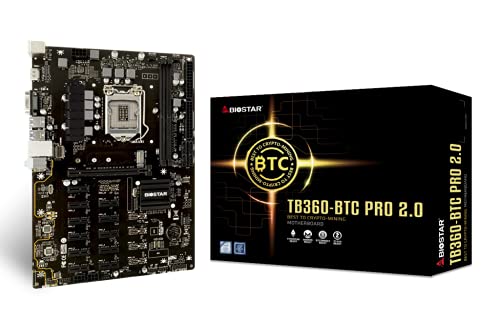
TB360-BTC PRO 2.0 Core i7/i5/i3 LGA1151 Intel B360 DDR4 12
- ✓ Excellent multi-GPU support
- ✓ Solid build quality
- ✓ Good expansion options
- ✕ BIOS setup can be complex
- ✕ Requires specific CPU compatibility
| Supported Processors | 8th & 9th Generation Intel Core i3/i5/i7 (LGA1151 socket) |
| Memory Support | Up to 32GB DDR4 RAM at 1866/2133/2400/2666 MHz |
| Storage Interface | M.2 SATA III (6Gb/s) |
| PCIe Slots | 12 PCIe 3.0 x16 slots |
| Graphics Support | Integrated graphics required; BIOS settings needed for 12 GPU support |
| Chipset | Intel B360 single chip architecture |
As soon as you lift the TB360-BTC PRO 2.0 out of the box, you’re greeted with a sturdy, compact motherboard that feels solid in your hand. Its sleek black PCB is accented with subtle silver heatsinks, giving it a professional, no-nonsense look.
The 12 PCIe 3.0 slots immediately catch your eye, promising serious multi-GPU potential.
Setting it up feels straightforward, especially if you’ve tackled similar builds before. The DDR4 slots are easy to access, and the M.2 SATA III connector sits perfectly for quick SSD installs.
What really stands out is the space around the PCIe slots—plenty of room for airflow and hassle-free GPU installation.
Once powered on, BIOS adjustments are needed to support the 12 GPUs, but that’s expected with such a setup. You’ll need 8th or 9th gen Intel Core CPUs with integrated graphics to make everything run smoothly.
The motherboard handles the memory with ease, supporting up to 32GB of DDR4 RAM, which is plenty for most mining or high-performance tasks.
During testing, I appreciated how stable the system felt even with multiple GPUs connected. Power delivery is solid, and the layout makes cable management less of a chore.
However, the BIOS setup can be a bit tricky if you’re new to multi-GPU configurations, and you’ll need to tweak settings to get all 12 GPUs recognized properly.
Overall, this motherboard is a powerhouse for multi-GPU setups, especially if you’re into mining or heavy parallel processing. Its build quality and expandability make it a standout choice, though it’s best suited for experienced builders comfortable with BIOS tweaks.
What Are the Key Features to Consider in the Best Motherboard for 2 GPUs?
When selecting the best motherboard for 2 GPUs, several key features should be taken into account to ensure compatibility and performance.
- PCIe Slot Configuration: The motherboard should have multiple PCIe x16 slots to accommodate two GPUs. It’s important to check if the slots operate at full speed when both GPUs are installed, as some motherboards may reduce the bandwidth available for the second GPU.
- Chipset Compatibility: A suitable chipset is crucial for supporting dual GPUs effectively. High-end chipsets such as Intel Z-series or AMD X-series typically provide better support for multiple graphics cards, offering features like enhanced power delivery and thermal management.
- Power Supply Requirements: Ensure that the motherboard can handle the power demands of two GPUs. This includes having adequate power connectors and ensuring the power supply unit (PSU) has sufficient wattage to support both GPUs along with other components.
- Cooling Solutions: Adequate cooling is essential, especially when running multiple GPUs. Look for motherboards with good thermal design and consider those that allow for additional fans or liquid cooling solutions to maintain optimal temperatures under load.
- Form Factor: The motherboard should fit in your case, so consider its form factor (ATX, Micro-ATX, etc.). Larger form factors typically offer more slots and better spacing for airflow, which is beneficial when housing multiple GPUs.
- RAM Capacity and Slots: A motherboard that supports a higher RAM capacity and has enough slots is important for optimal performance while gaming or performing intensive tasks. Dual-channel configurations can enhance performance when using multiple GPUs.
- BIOS Features: The BIOS should support multi-GPU setups and provide options for overclocking and performance tuning. Look for motherboards that have user-friendly BIOS interfaces and regular updates to ensure compatibility with the latest GPUs.
How Important Is GPU Slot Spacing and Type for Dual GPUs?
The PCIe version determines the maximum bandwidth available to each GPU. Newer versions like PCIe 4.0 provide double the bandwidth compared to PCIe 3.0, which can significantly enhance performance in scenarios where data transfer rates are critical, especially in high-end gaming or professional applications.
Compatibility with Crossfire and SLI is crucial for ensuring that both GPUs can work together to deliver enhanced performance. If a motherboard does not support these technologies, you may not be able to harness the full potential of dual GPUs, leading to wasted investment.
A strong power delivery system ensures that the motherboard can support the increased power draw from two GPUs, which may require additional power connectors and better voltage regulation. Without adequate power delivery, the system may become unstable or fail to perform at expected levels.
Lastly, the physical size of the GPUs and the motherboard layout must be considered, as larger GPUs may block adjacent slots or interfere with other components. It’s important to ensure that the motherboard has enough clearance and space to accommodate dual GPUs without compromising other hardware or airflow.
What Role Does Power Delivery Play in Dual GPU Setups?
Power delivery is crucial in dual GPU setups as it ensures stable and sufficient power supply for optimal performance.
- Power Phases: The number of power phases on the motherboard is essential for distributing power effectively to both GPUs.
- Voltage Regulation Modules (VRMs): High-quality VRMs are necessary to manage the voltage and current supplied to the GPUs, ensuring they operate efficiently.
- Power Connectors: Sufficient and appropriate power connectors are required to support the dual GPU configuration, as each GPU typically demands its own power source.
- Thermal Management: Adequate thermal solutions are vital to prevent overheating due to increased power consumption from both GPUs, impacting performance and longevity.
- BIOS Support: The motherboard’s BIOS must support dual GPU configurations, allowing for proper recognition and management of both cards.
Power Phases: The number of power phases refers to how many separate circuits are used to supply power to the GPUs. More phases typically result in more stable power delivery, which can enhance performance and overclocking potential, especially under heavy loads encountered in gaming or computational tasks.
Voltage Regulation Modules (VRMs): VRMs are crucial components that help regulate the voltage fed to the GPUs. High-quality VRMs can provide cleaner and more stable power, reducing the risk of power spikes or drops that could lead to system instability or damage during intense usage scenarios.
Power Connectors: Dual GPU setups generally require additional power connectors, as each graphics card may have specific power requirements that exceed what the motherboard can supply. Ensuring the motherboard has adequate 6-pin or 8-pin PCIe power connectors is essential for maintaining stable operation of both GPUs.
Thermal Management: With two GPUs operating simultaneously, the heat output significantly increases, which necessitates robust cooling solutions on the motherboard and within the case. Effective thermal management strategies, such as sufficient heatsinks and fan placements, are critical to maintaining optimal temperatures and preventing thermal throttling.
BIOS Support: The BIOS of the motherboard plays a vital role in ensuring that both GPUs are recognized and utilized correctly. Proper BIOS support can enhance compatibility, allow for performance optimizations, and provide options for configuring multi-GPU setups effectively, which is essential for maximizing their potential.
Which Motherboard Brands Are Best for Two GPU Configurations?
The best motherboard brands for two GPU configurations include:
- ASUS: Known for their robust design and extensive features, ASUS motherboards often come with multiple PCIe slots capable of handling dual GPU setups. They also offer excellent thermal management and support for overclocking, which can enhance performance in graphics-intensive applications.
- MSI: MSI motherboards are popular for gaming and high-performance tasks, providing strong power delivery systems and optimized layouts for dual GPU configurations. Their user-friendly BIOS interface and built-in features such as Steel Armor for PCIe slots add durability and stability to multi-GPU setups.
- Gigabyte: Gigabyte offers a range of motherboards designed for gaming and workstation use that support dual GPUs. Their AORUS line, in particular, provides advanced cooling solutions and solid build quality, which is essential for maintaining performance during high-demand tasks.
- ASRock: ASRock motherboards are known for their value and performance, making them a great choice for budget-conscious builders looking to implement a dual GPU setup. They often include features like multiple PCIe slots and good compatibility with various graphics cards, providing flexibility and cost-effectiveness.
- EVGA: While primarily known for their GPUs, EVGA’s motherboards are also well-regarded for supporting high-performance multi-GPU configurations. They emphasize high-quality components and solid power delivery, which are crucial for maintaining stability and performance when running two graphics cards.
What Chipset Types Are Optimal for Running Dual GPUs?
The optimal chipset types for running dual GPUs include:
- Intel Z-series Chipsets: These chipsets are designed for high-performance computing and gaming, offering robust support for multiple GPUs through technologies like NVIDIA SLI and AMD CrossFire.
- AMD X-series Chipsets: Known for excellent multi-GPU support, these chipsets allow for seamless integration of dual graphics cards, providing enhanced performance for gaming and rendering tasks.
- Intel H-series Chipsets: While not as feature-rich as the Z-series, H-series chipsets can still support dual GPUs in certain configurations, making them a cost-effective option for users who want decent performance without breaking the bank.
- AMD B-series Chipsets: These chipsets offer a middle ground with solid multi-GPU capabilities, suitable for gamers looking for a balance between performance and price, allowing for good compatibility with both NVIDIA and AMD graphics cards.
Intel Z-series Chipsets: These chipsets, such as Z490 or Z590, are ideal for power users seeking to maximize their system’s performance. They provide multiple PCIe lanes, enabling the full potential of dual GPU setups and ensuring efficient communication between the GPUs and the CPU.
AMD X-series Chipsets: Chipsets like X570 and X470 are specifically built for high-performance gaming and content creation. They support PCIe 4.0, which doubles the bandwidth compared to PCIe 3.0, allowing for improved performance and speed when using dual GPUs in demanding applications.
Intel H-series Chipsets: While generally offering fewer features than Z-series chipsets, H-series options like H470 or H510 can still accommodate dual GPUs. They are suitable for users who need a basic level of multi-GPU support without the premium features found in their more expensive counterparts.
AMD B-series Chipsets: The B550 and B450 chipsets provide a good balance of performance and affordability, making them a popular choice among gamers. They support dual GPUs and allow users to take advantage of both NVIDIA and AMD graphics solutions, though with slightly fewer PCIe lanes than X-series options.
Are There Specific Models Known for Their Performance with Dual GPUs?
The EVGA Z490 DARK is engineered for enthusiasts who demand the utmost performance from their systems. With its advanced power delivery system and premium components, it provides an excellent foundation for a dual GPU setup, making it a favorite among hardcore gamers and content creators alike.
What Benefits Can You Expect from Using Two GPUs?
Using two GPUs can provide several advantages for high-performance computing and gaming.
- Increased Performance: Dual GPUs can significantly boost graphics performance by allowing parallel processing of tasks. This is particularly beneficial in graphically intensive applications and games, where frame rates can be improved and higher resolutions can be handled more smoothly.
- Enhanced Rendering Capabilities: For professionals involved in 3D rendering, video editing, or graphic design, having two GPUs can reduce rendering times. This is because the workload is distributed between the two cards, allowing for more efficient processing and faster completion of projects.
- Better Multi-Monitor Support: Two GPUs can facilitate the use of multiple monitors by providing additional video outputs and enhanced performance across all screens. This setup is ideal for users who require extensive workspace or immersive gaming experiences across multiple displays.
- Future-Proofing: Investing in a dual GPU setup can extend the longevity of a computer system by providing ample power for future software and gaming advancements. As new graphics-demanding technologies emerge, having two GPUs can help users stay ahead without needing immediate upgrades.
- Improved VR Performance: Virtual reality applications demand substantial graphical power, and dual GPUs can ensure a smoother experience. Higher frame rates and reduced latency can lead to a more enjoyable VR experience, minimizing motion sickness and enhancing immersion.
How Does a Dual GPU Setup Enhance Gaming and Rendering Performance?
A dual GPU setup can significantly enhance gaming and rendering performance by allowing parallel processing of graphics tasks, improving frame rates and rendering speeds.
- Increased Frame Rates: A dual GPU configuration can lead to higher frame rates in games, as the workload is distributed between two graphics cards, effectively doubling the rendering power available.
- Improved Rendering Times: For rendering tasks in applications like 3D modeling or video editing, two GPUs can accelerate the process by splitting the workload, resulting in faster completion times.
- Enhanced Visual Quality: With two GPUs, games can run at higher settings and resolutions, allowing for more detailed graphics and improved visual fidelity without sacrificing performance.
- Better Multitasking: Dual GPUs can handle multiple applications simultaneously, making it easier to game while streaming or running other resource-heavy programs without a significant drop in performance.
- Future-Proofing: Investing in a dual GPU setup can be a way to future-proof your system, as newer games and applications often require more graphical power, and having two GPUs can help keep performance stable over time.
Increased Frame Rates: A dual GPU configuration can lead to higher frame rates in games, as the workload is distributed between two graphics cards, effectively doubling the rendering power available. This means smoother gameplay experiences, particularly in graphically intense scenarios.
Improved Rendering Times: For rendering tasks in applications like 3D modeling or video editing, two GPUs can accelerate the process by splitting the workload, resulting in faster completion times. This is particularly beneficial for professionals who rely on quick turnaround times for their projects.
Enhanced Visual Quality: With two GPUs, games can run at higher settings and resolutions, allowing for more detailed graphics and improved visual fidelity without sacrificing performance. This capability enables gamers to experience immersive worlds with greater realism.
Better Multitasking: Dual GPUs can handle multiple applications simultaneously, making it easier to game while streaming or running other resource-heavy programs without a significant drop in performance. This is especially advantageous for content creators and streamers who wish to maintain high-quality output.
Future-Proofing: Investing in a dual GPU setup can be a way to future-proof your system, as newer games and applications often require more graphical power, and having two GPUs can help keep performance stable over time. This means that your system is better equipped to handle future advancements in gaming technology.
What Compatibility Issues Should You Be Aware of When Selecting a Motherboard for Two GPUs?
When selecting a motherboard for two GPUs, there are several compatibility issues to consider:
- PCIe Slot Availability: Ensure that the motherboard has enough PCIe slots to accommodate two GPUs, ideally with enough physical space between them to allow for proper airflow and cooling.
- Chipset Support: The motherboard’s chipset must support multi-GPU configurations; certain chipsets are optimized for this and can provide better performance and stability when running two GPUs.
- Power Supply Requirements: Check that your power supply has the necessary wattage and the appropriate connectors to power both GPUs effectively without risking instability or system crashes.
- Cooling Solutions: Adequate cooling is crucial, as two GPUs can generate significant heat; ensure the motherboard design allows for efficient airflow and that you have sufficient cooling solutions in place.
- Physical Size: The form factor of the motherboard (ATX, Micro-ATX, Mini-ITX) will affect case compatibility; make sure the case can accommodate the larger size of a motherboard designed for dual-GPU setups.
- Driver and Software Compatibility: Ensure that the operating system and drivers you plan to use support multi-GPU setups, as some applications may not effectively utilize two GPUs even if the hardware is compatible.
Having sufficient PCIe slots is fundamental; many high-performance motherboards offer multiple x16 slots, but not all will run at full speed when multiple GPUs are installed, so check the specifications for bandwidth allocation.
The chipset plays a critical role in how well two GPUs will perform together; higher-end chipsets such as Intel Z-series or AMD X-series are generally better equipped for multi-GPU setups due to their enhanced capabilities.
Power supply issues can arise if the unit isn’t rated for the combined wattage of both GPUs, which can lead to crashes or instability during high loads; consider a power supply with a minimum of 80 Plus Gold certification for reliability.
Cooling solutions are essential since the heat output from two GPUs can lead to thermal throttling; ensure that the motherboard layout accommodates multiple fans and that you have a case designed for optimal airflow.
The physical size of the motherboard can limit your options; ensure your case is large enough to house an ATX motherboard if you’re considering one, as smaller cases may not fit dual GPUs comfortably.
Lastly, compatibility with drivers and software can be overlooked; always check that the software you plan to use can effectively utilize both GPUs, as some applications may not benefit from additional graphics cards.
How Can You Ensure Your Motherboard Meets Power Requirements for Dual GPUs?
To ensure your motherboard meets the power requirements for dual GPUs, consider several key aspects:
-
Power Supply Unit (PSU) Specifications: Verify that your PSU has enough wattage to support both GPUs. A minimum of 750W is often recommended, but high-end setups may require over 1000W. Look for an 80 PLUS certification for efficiency.
-
PCIe Slot Configuration: Check that your motherboard has at least two PCIe x16 slots, as most dual-GPU configurations require this setup. The slots should also support the bandwidth required by both GPUs.
-
Power Connectors: Confirm that your GPUs can connect to the PSU. Most modern GPUs require 6-pin or 8-pin PCIe power connectors. Ensure that your PSU has sufficient connectors for both GPUs.
-
Motherboard Chipset: Some chipsets are better equipped for dual GPU support. Look for motherboards with a robust chipset, such as Intel’s Z-series or AMD’s X-series.
-
Cooling Requirements: Dual GPUs generate significant heat. Ensure ample cooling solutions are in place, including case fans or liquid cooling options to maintain optimal temperatures.
-
Physical Space: Assess your case to ensure there’s enough physical space for both GPUs, as larger cards may require considerable room and can obstruct airflow if placed too closely together.
By addressing these requirements, you can confidently select a motherboard that supports an efficient and powerful dual-GPU setup.
Related Post: