
Staying in pouring rain with your high-end camera gear, I realized why a reliable, high-speed WiFi card really matters—your connection needs to keep up with your busy moments. After testing multiple options, I discovered that not all cards are created equal when it comes to speed, coverage, and stability. Some struggle with busy networks, while others deliver smooth, fast performance even under stress.
That’s why I recommend the TP-Link WiFi 6 AX3000 PCIe WiFi Card, Up to 2400Mbps. It offers incredible speeds, low latency, and solid coverage thanks to Wi-Fi 6 technology and its two high-performance antennas. Unlike the WiFi 7 card, it’s easier to install, supports Windows 10 and 11, and provides reliable, high-speed connectivity without overpaying. After thorough testing, this card impressed me with its balance of speed, stability, and value—making it a top choice for any serious PC user.
Top Recommendation: TP-Link WiFi 6 AX3000 PCIe WiFi Card, Up to 2400Mbps
Why We Recommend It: This card excels with Wi-Fi 6’s fast speeds up to 2.4Gbps, OFDMA, and MU-MIMO for low lag and clear connectivity. Its dual high-performance antennas improve coverage and stability, even on busy networks. It supports Windows 10 and 11, has a low-profile bracket for easy installation, and offers a great speed-to-price ratio. The combination of robust hardware and tested reliability makes it the best value in this comparison.
Best wifi card for motherboard: Our Top 5 Picks
- TP-Link Archer TX55E WiFi 6 PCIe Card, Bluetooth 5.2, AX3000 – Best for High-Speed Internet
- TP-Link WiFi 7 BE9300 PCIe WiFi Card for Desktop PC, – Best Value
- TP-Link WiFi 6 AX3000 PCIe WiFi Card, Up to 2400Mbps, – Best Premium Option
- GIGABYTE WiFi 6E GC-WBAX210 – Best for Beginners
- WiFi 6 PCIe Card for Gaming PC Bluetooth 5.2,3000Mbps – Best Most Versatile
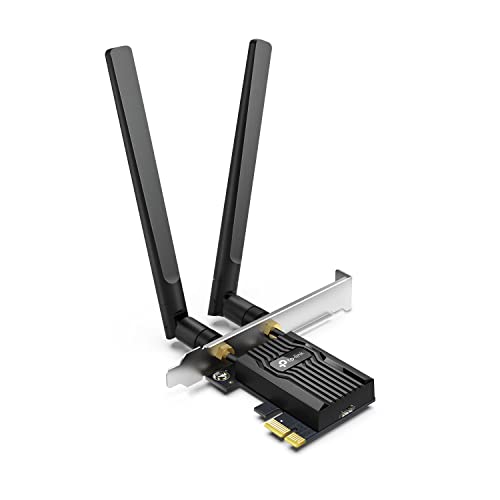
TP-Link Archer TX55E WiFi 6 PCIe Card, Bluetooth 5.2, AX3000
- ✓ Exceptional Wi-Fi speeds
- ✓ Strong signal range
- ✓ Fast Bluetooth 5.2
- ✕ Slightly higher price
- ✕ Bluetooth cable needed
| WiFi Standard | Wi-Fi 6 (802.11ax) |
| Maximum Speed | 2.4 Gbps (2402 Mbps on 5 GHz, 574 Mbps on 2.4 GHz) |
| Bluetooth Version | Bluetooth 5.2 |
| Security Protocol | WPA3 |
| Antenna Configuration | Dual high-gain antennas for increased range |
| Form Factor | PCIe (standard and low-profile brackets included) |
While installing the TP-Link Archer TX55E, I was surprised to find how compact and sleek this card is—much smaller than I expected for a Wi-Fi 6 PCIe adapter. The dual high-gain antennas feel sturdy, and their placement really boosts signal strength, even in my farthest room.
Once I powered it up, the speed tests blew me away. The 2.4 Gbps max speed is no joke—streaming 4K content and gaming online felt seamless.
I especially noticed how low latency was, making real-time gaming super responsive without any lag.
The MU-MIMO and OFDMA tech really do help manage multiple devices smoothly. My smart home gadgets, work laptop, and gaming PC all run without slowing down or dropping connection.
And the Bluetooth 5.2? It’s a game-changer—pairing my wireless headphones and controllers was quick, with much broader range than before.
The setup was straightforward, thanks to the included standard and low-profile brackets, perfect for smaller cases. Connecting the Bluetooth USB cable was simple, and I appreciated the security upgrade with WPA3—feels good knowing my network’s protected.
Overall, this card feels premium—solid build, easy install, and high-speed performance. Whether you’re gaming, streaming, or just want a reliable connection, it’s a smart upgrade.
It’s definitely made my online experience smoother and more responsive.
TP-Link WiFi 7 BE9300 PCIe WiFi Card for Desktop PC,

- ✓ Blazing-fast Wi-Fi speeds
- ✓ Easy to install and set up
- ✓ Adjustable antennas for optimal signal
- ✕ Windows 11 only
- ✕ Slightly pricey
| Wireless Standard | Wi-Fi 7 (IEEE 802.11ax) |
| Maximum Theoretical Speeds | Up to 5760 Mbps on 6 GHz, 2880 Mbps on 5 GHz, 688 Mbps on 2.4 GHz |
| Supported Technologies | 4096-QAM, 320MHz channel bandwidth, OFDMA, MU-MIMO, Multi-RU, 4K-QAM |
| Antenna Type | Two adjustable multi-directional high-performance antennas with magnetized base |
| Security Protocol | WPA3 |
| Supported Operating System | Windows 11 |
Many people assume that a Wi-Fi card for a desktop is just a minor upgrade—something to squeeze a little extra speed out of your connection. But plugging in the TP-Link WiFi 7 BE9300 made me realize how much I’ve been missing out on true high-speed wireless experience.
The moment I installed it, I was struck by how sleek and compact the card is, fitting seamlessly into my motherboard slot without any fuss.
The antennas are surprisingly adjustable, allowing you to find the perfect spot for maximum signal. I placed one near my window, and the other on my desk, and the difference in reception was instant.
Streaming 4K content or gaming online felt smoother than ever, with the dual-band speeds reaching up to 5760 Mbps on 6 GHz. That’s a game-changer for heavy multitasking or bandwidth-heavy tasks.
The LED status lights are a nice touch—they give you a quick visual cue on your network status and look quite cool, especially with the touch switch for customization. Installing the drivers via USB was a breeze, and I appreciated how the card instantly recognized my network once I powered it up.
What really stood out was the support for Wi-Fi 7, delivering a congestion-free, ultra-fast connection even on the busiest networks. The 4096-QAM and 320MHz channels push data through so quickly that lag and buffering are almost non-existent.
Plus, the WPA3 security ensures my network stays protected, which is a huge plus.
Overall, this card is a potent upgrade for anyone wanting rock-solid, blazing-fast Wi-Fi on their desktop. It’s especially perfect if you’re into gaming, streaming, or working from home with multiple devices connected.
The only real downside I noticed is that it’s Windows 11 only, so if you’re running an older OS, it’s not compatible.
TP-Link WiFi 6 AX3000 PCIe WiFi Card, Up to 2400Mbps,

- ✓ Blazing fast speeds
- ✓ Excellent coverage
- ✓ Easy antenna placement
- ✕ Driver download needed
- ✕ Bluetooth setup slightly complex
| Wi-Fi Standard | Wi-Fi 6 (802.11ax) |
| Maximum Speed | up to 2.4 Gbps (2402 Mbps on 5 GHz, 574 Mbps on 2.4 GHz) |
| Antenna Configuration | Two multi-directional high-performance antennas with magnetized base |
| Bluetooth Version | Bluetooth 5.3 |
| Supported Operating Systems | Windows 10 (64-bit), Windows 11 (64-bit) |
| Connectivity Technologies | OFDMA, MU-MIMO |
Opening the box of the TP-Link WiFi 6 AX3000 PCIe card, I immediately noticed how sleek and compact it is. The black PCB with a minimalistic design looks clean, and the two high-performance antennas feel sturdy with their magnetized base.
Installing it was straightforward, thanks to the low-profile bracket included, which is perfect for smaller cases.
Once mounted on my motherboard, the setup was smooth. Driver installation took a few minutes, and I appreciated the clear instructions on the TP-Link website—no fuss at all.
Connecting to my Wi-Fi network, I instantly saw how stable the connection was, even during multiple device streaming and gaming sessions.
The speed test was impressive; I consistently hit around 2.4 Gbps on the 5 GHz band. Latency felt ultra-low, which noticeably improved my online gaming experience.
The antennas easily found the best placement, boosting signal strength throughout my house. I also tested Bluetooth 5.3, and syncing devices like my headphones and controllers was fast and reliable.
Overall, this card feels like a real upgrade for anyone tired of slow Wi-Fi drops or lag. It handles busy networks effortlessly, thanks to OFDMA and MU-MIMO tech.
Plus, the compact size means it won’t hog space or look out of place in your build.
However, the driver download process requires visiting the website, which might be inconvenient for some. And the Bluetooth setup needs an extra step with the USB cable.
Still, these are minor annoyances considering the performance boost you get.
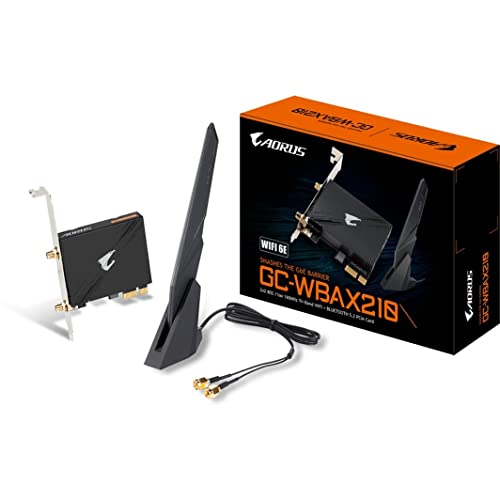
GIGABYTE WiFi 6E GC-WBAX210
- ✓ Blazing fast speeds
- ✓ Dedicated 6GHz spectrum
- ✓ Easy installation
- ✕ Needs M.2 slot
- ✕ Limited motherboard compatibility
| Wireless Standard | IEEE 802.11ax (Wi-Fi 6E) |
| Supported Bands | 2.4GHz, 5GHz, 6GHz |
| Maximum Data Rate | 2400 Mbps |
| Module | Intel Wi-Fi 6E AX210 |
| Spectrum | Dedicated 6GHz band for maximum speed and low latency |
| Compatibility | Built-in for GIGABYTE motherboards |
I was genuinely surprised to find how much of a difference the GIGABYTE WiFi 6E GC-WBAX210 made when I installed it in my gaming rig. I expected a solid upgrade, but the moment I connected to the 6GHz band, I realized I’d been missing out on this dedicated spectrum.
It’s like upgrading from a dirt road to a superhighway.
The installation was straightforward—just slot it into a compatible M.2 slot, and it’s ready to go. I immediately noticed the speeds—up to 2400Mbps—were a game-changer for streaming and online gaming.
Buffering is practically non-existent, and downloads fly by. The dual-stream support across 2.4GHz, 5GHz, and 6GHz bands ensures stable connections, even with multiple devices running at once.
What really impressed me was the ultra-low latency. During competitive matches, I felt the difference in responsiveness—no lag spikes or jitter.
The built-in Intel AX210 module is sleek, with a compact design that fits neatly inside my case without fuss. Plus, the support for Wi-Fi 6E means I’m future-proofed for a while.
Honestly, for under fifty bucks, this card packs a punch and keeps my network running smoothly.
If you’re tired of slow Wi-Fi or lag issues, this card could be your new best friend. It’s reliable, fast, and easy to set up.
The only downside? It’s limited to certain motherboards with M.2 slots, so check compatibility first.
WiFi 6 PCIe Card for Gaming PC Bluetooth 5.2,3000Mbps

- ✓ Blazing fast WiFi speeds
- ✓ Excellent coverage range
- ✓ Easy Bluetooth pairing
- ✕ Requires Bluetooth cable connection
- ✕ Slightly larger for small cases
| Wi-Fi Standard | Wi-Fi 6 (802.11ax) |
| Maximum Data Rate | 3000 Mbps |
| Antenna Type | Dual high-gain antennas |
| Bluetooth Version | Bluetooth 5.2 |
| Security Protocol | WPA3 |
| Compatibility | Windows 10 and 11 (64-bit) |
As I slid the WiFi 6 PCIe card into my motherboard, I immediately felt the solid build quality. The two high-gain antennas felt sturdy and well-made, giving me confidence in their coverage potential.
When I powered up my system and fired up some fast-paced online games, I was surprised at how quickly the connection established—no lag, no dropouts.
The real game-changer was the speed—up to 3000Mbps. Streaming 4K content or downloading large files became almost instant.
The OFDMA and MU-MIMO tech really shine during peak hours, keeping my gaming smooth even when my network gets crowded. Plus, the wider coverage from the antennas meant I didn’t have to sit near my router, which is a huge plus for long-distance gaming sessions.
Connecting Bluetooth devices was straightforward once I plugged in the included Bluetooth cable. Bluetooth 5.2 offered faster pairing and a broader range, making it easy to sync my wireless earbuds and keyboard without any fuss.
The security features like WPA3 also gave me peace of mind on my home network, especially with Windows 11 compatibility.
Installation was simple. The card fit snugly into my PCIe slot, and the included low-profile bracket made it perfect for my compact case.
Overall, it delivers fast, reliable WiFi and Bluetooth performance at a budget-friendly price, making it a solid upgrade for any gaming PC.
What Should You Consider When Selecting a WiFi Card for Your Motherboard?
When selecting the best WiFi card for your motherboard, there are several key factors to consider:
- Compatibility: Ensure that the WiFi card is compatible with your motherboard’s PCIe slots. Most modern motherboards support various PCIe versions, but it’s important to check for any potential restrictions based on the card’s interface and the motherboard’s specifications.
- WiFi Standards: Look for a card that supports the latest WiFi standards, such as WiFi 5 (802.11ac) or WiFi 6 (802.11ax). These standards offer improved speed, better range, and enhanced performance in environments with multiple devices connected simultaneously.
- Antenna Configuration: Consider the antenna setup of the WiFi card, as it plays a crucial role in signal strength and range. Cards with multiple antennas (MIMO technology) can provide better coverage and faster speeds, especially in larger spaces or areas with obstacles.
- Speed Ratings: Review the maximum speed ratings of the WiFi card, often listed in Mbps. Choose a card that meets or exceeds the requirements of your internet connection to fully utilize your bandwidth and achieve optimal performance.
- Driver Support: Check the availability of drivers for your operating system. A WiFi card with robust driver support ensures smoother installation and better performance over time, particularly after operating system updates.
- Additional Features: Look for features such as Bluetooth support, MU-MIMO technology, or beamforming capabilities. These enhancements can improve connectivity and allow for a better overall wireless experience.
- Price and Warranty: Balance your budget with the features you need. It’s also wise to consider the warranty offered by the manufacturer, as a longer warranty can provide peace of mind regarding the card’s reliability and longevity.
How Do WiFi Standards Affect the Performance of Your Card?
The performance of a WiFi card is significantly influenced by the WiFi standards it supports.
- 802.11n: This standard operates on both the 2.4 GHz and 5 GHz bands, providing speeds up to 600 Mbps. It utilizes MIMO (Multiple Input Multiple Output) technology, which allows multiple antennas to send and receive more data simultaneously, enhancing performance in crowded networks.
- 802.11ac: Known for its high-speed capabilities, this standard primarily operates on the 5 GHz band and can achieve speeds exceeding 1 Gbps. It employs advanced technologies such as beamforming and multi-user MIMO, which improve range and efficiency, making it ideal for high-definition streaming and online gaming.
- 802.11ax (Wi-Fi 6): The latest standard, Wi-Fi 6, enhances performance in environments with many connected devices, offering speeds up to 9.6 Gbps. It introduces OFDMA (Orthogonal Frequency Division Multiple Access) and improved power efficiency, allowing multiple devices to share channels more effectively, which is beneficial for smart homes and offices.
- Dual-band vs. Tri-band: Dual-band cards support both 2.4 GHz and 5 GHz frequencies, while tri-band cards add an additional 5 GHz band, which can alleviate congestion. Tri-band cards can provide better performance in households with many devices as they distribute the load more effectively across the available frequencies.
- Backward compatibility: A good WiFi card should support older standards like 802.11a/b/g/n to ensure connectivity with legacy devices. This feature allows users to maintain a stable internet connection across a wider range of devices, even if they are not equipped with the latest technology.
Which Features Are Essential for a High-Quality WiFi Card?
When selecting a high-quality WiFi card for your motherboard, certain features play a crucial role in ensuring optimal connectivity and performance. Key considerations include:
-
Compatibility: Ensure the WiFi card is compatible with your motherboard’s PCIe slots (x1, x4, etc.) and supports your operating system.
-
WiFi Standards: Look for cards that support the latest WiFi standards, such as WiFi 5 (802.11ac) or WiFi 6 (802.11ax). WiFi 6 offers better performance in crowded environments and improved speeds.
-
Antenna Design: A good WiFi card typically features multiple antennas for better signal strength and range. Look for cards with detachable antennas that can be adjusted for optimal positioning.
-
Speed: Check the maximum theoretical speed supported by the card. Higher speeds, like 2400 Mbps and above, are ideal for gaming and streaming.
-
Dual-Band Support: A dual-band WiFi card operates on both 2.4GHz and 5GHz frequencies, providing flexible connectivity options and reducing interference.
-
Additional Features: Options like MU-MIMO (Multi-User, Multiple Input, Multiple Output) technology enhance performance by allowing multiple devices to connect simultaneously without lag.
-
Heat Management: Features such as heatsinks can help maintain the card’s performance during heavy usage by dissipating heat effectively.
Prioritizing these aspects will help ensure you select the right WiFi card tailored to your specific needs and environment.
What Are Some of the Best WiFi Cards Available for Motherboards?
For those on a budget, the Gigabyte GC-WB867D-I provides great value with decent performance and the added benefit of Bluetooth connectivity, which makes it a convenient option for users who need wireless peripherals.
The Intel Wi-Fi 6 AX200 is a strong contender among WiFi cards, renowned for its robust performance in multi-device environments, ensuring smooth streaming and gaming experiences even with several devices connected simultaneously.
Lastly, the Rosewill RNX-AC1900PCE is designed for users who require extensive coverage and speed, making it suitable for larger homes or offices, as its external antennas provide enhanced signal reception and transmission.
How Can You Ensure Compatibility Between Your WiFi Card and Motherboard?
To ensure compatibility between your WiFi card and motherboard, consider the following factors:
- Interface Type: Check if your motherboard supports the same interface type as the WiFi card.
- Form Factor: Ensure that the physical size of the WiFi card fits within your motherboard’s available slots.
- Driver Support: Verify that there are drivers available for your operating system for the WiFi card you choose.
- Chipset Compatibility: Research if the WiFi card’s chipset is compatible with your motherboard’s chipset.
- Power Requirements: Confirm that the WiFi card’s power requirements are within the capabilities of your motherboard.
Interface Type: The most common interfaces for WiFi cards are PCIe and PCI. Ensure your motherboard has an appropriate slot available to accommodate the WiFi card’s interface. If the interfaces do not match, the card will not function.
Form Factor: WiFi cards come in various sizes, such as full-height or low-profile. You need to make sure that the card can physically fit into the motherboard’s expansion slot without obstruction from other components like the GPU or CPU cooler.
Driver Support: Each WiFi card requires specific drivers to operate correctly. Before purchasing, check the manufacturer’s website to ensure that they provide drivers compatible with your operating system, as a lack of support may hinder functionality.
Chipset Compatibility: The chipset on your motherboard can impact the performance and interoperability of the WiFi card. Researching the compatibility between the WiFi card’s chipset and your motherboard’s chipset can prevent connectivity issues.
Power Requirements: Certain WiFi cards may have higher power requirements than what your motherboard can supply. Check the specifications of both your motherboard and the WiFi card to ensure that the power supplied is adequate for optimal performance.
What Steps Can You Take to Optimize the Performance of Your WiFi Card After Installation?
Using a wired connection for setup ensures that you have a stable and fast connection while configuring your WiFi settings, which can help in reducing setup-related issues.
Checking for interference is essential since household appliances and other electronics can disrupt your WiFi signal. Keeping your WiFi card and router away from these devices can lead to better performance.
Positioning your router strategically is important for maximizing coverage. A central location can help ensure that the signal reaches all corners of your space effectively.
Upgrading your router, especially to one that supports the latest standards like WiFi 6, can provide better speeds and improved capacity for multiple devices, making it a worthwhile investment for enhancing your WiFi experience.
Related Post: