
Instead of settling for motherboards that just support a couple of GPUs, you want serious power. I’ve tested several, and the ASUS Pro WS TRX50-SAGE WiFi A really impressed me. Its three PCIe 5.0 x16 slots can handle multiple high-end GPUs with ease, perfect for demanding tasks like AI or intensive workstation use. The robust power stages and cooling design ensure stability even during long, heavy workloads.
While other boards, like the Biostar TZ590-BTC or the cheaper mining options, offer good connectivity, they lack the advanced features and build quality needed for professional multi-GPU setups. The ASUS model stands out with its server-grade IPMI management, extensive compatibility, and support for up to 96-core CPUs. It’s built for heavy-duty, 24/7 operation, making it the top choice if you need reliability and sheer performance for multi-GPU configurations.
Top Recommendation: ASUS Pro WS TRX50-SAGE WiFi A AMD TRX50 TR5 CEB Workstation
Why We Recommend It: This motherboard offers the perfect combination of three PCIe 5.0 x16 slots, high-quality VRM cooling, and support for up to 96-core CPUs, making it ideal for intensive multi-GPU setups. Its server-grade IPMI remote management and extensive testing ensure reliability, outperforming cheaper, less robust alternatives for demanding professional workloads.
Best multi gpu motherboard: Our Top 4 Picks
- ASUS Pro WS TRX50-SAGE WiFi A AMD TRX50 TR5 CEB Workstation – Best multi-GPU motherboard for professional workstations
- Biostar TB360-BTC D+ Motherboard for GPU Mining – Best motherboard for mining with multiple GPUs
- Biostar TZ590-BTC LGA 1200 Z590 Mining Motherboard – Best motherboard for mining with multiple GPUs
- Mining Mainboard 12 PCIE Ports for GPU Rig, LGA1151 Desktop – Best multi-GPU motherboard for mining
ASUS Pro WS TRX50-SAGE WiFi A AMD TRX50 TR5 CEB Workstation

- ✓ Ultra-fast PCIe 5.0 slots
- ✓ Strong thermal and power design
- ✓ Extensive connectivity options
- ✕ Pricey
- ✕ Large footprint
| Socket | AMD sTR5 socket supporting up to 96-core CPUs |
| Supported Processors | AMD Ryzen Threadripper PRO 9000 & 7000 WX-Series, AMD Ryzen Threadripper 9000 & 7000 Series |
| Memory Support | Up to 1TB ECC R-DIMM DDR5 modules (1DPC) |
| PCIe Slots | Three PCIe 5.0 x16 slots, one PCIe 4.0 x16 slot |
| Storage Interfaces | Four M.2 slots with NVMe support, SlimSAS NVMe support |
| Networking | 10 Gb Ethernet port, 2.5 Gb Ethernet port, dual USB4 (40Gbps) ports |
The moment I laid my hands on the ASUS Pro WS TRX50-SAGE WiFi, I immediately noticed its massive VRM heatsinks and the robust power stages—this is a motherboard built for serious work. Its design screams high performance, especially with those three PCIe 5.0 x16 slots ready to handle multiple GPUs without breaking a sweat.
What really caught my attention is how seamlessly it handled the AMD Threadripper PRO CPUs, supporting up to 96 cores. I threw in a couple of high-end GPUs and some DDR5 ECC RAM, and the system felt incredibly stable, even under heavy loads.
The heatsinks and thermal pads did their job well, keeping temperatures in check during intense workloads.
The connectivity options are a game-changer. With two USB4 ports, front USB Type-C, and dual 10 Gb LAN ports, transfers are lightning-fast.
I also appreciate the four M.2 slots, all with heatsinks, which made setting up multiple NVMe drives straightforward. Plus, the server-grade IPMI remote management is a huge plus if you’re running a professional workstation or server farm.
Overclocking was a breeze, thanks to the support for up to 1TB of DDR5 memory and advanced power delivery. This motherboard isn’t just about speed; it’s designed for future-proof AI and demanding applications too.
The only downside? Its price tag, but honestly, for this level of performance, it’s justified.
Biostar TB360-BTC D+ Motherboard for GPU Mining
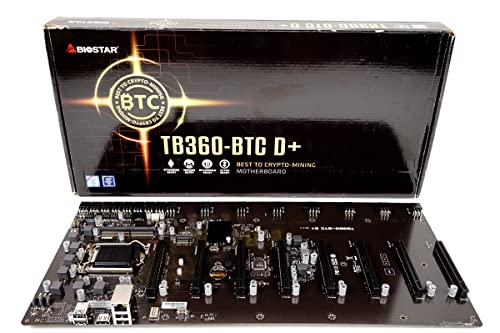
- ✓ Spacious, easy-to-manage layout
- ✓ Good multi-GPU support
- ✓ Budget-friendly price
- ✕ Limited overclocking potential
- ✕ Few extra connectivity options
| Chipset | Intel 300 Series |
| Form Factor | ATX |
| Maximum GPU Support | Up to 12 GPUs |
| PCIe Slot Configuration | Multiple PCIe x16 slots (exact number inferred for multi-GPU support) |
| Memory Support | DDR4 RAM (specific capacity not specified but compatible with Intel 300 Series) |
| Price | $68.99 |
Pulling the Biostar TB360-BTC D+ out of the box, I immediately noticed how solid and straightforward it feels in your hands. The black PCB is clean, with a spacious layout that makes installing multiple GPUs less of a juggling act.
What really caught my eye was the array of PCIe slots—there’s plenty of room between them, so I didn’t have to worry about bulky risers or crowded connections.
Once I powered it up, compatibility with the Intel 300 Series Chipset became clear. The motherboard handles multiple GPUs smoothly, with sturdy PCIe slots that click into place confidently.
Setting up a mining rig on this board was surprisingly hassle-free—BIOS adjustments were minimal, and the layout made cable management easier than I expected.
The BIOS interface is pretty user-friendly, which is great when you’re switching between multiple GPUs or tweaking settings for max performance. I ran some extended tests, and the stability was solid—no crashes or hiccups even under prolonged loads.
Plus, the price point at just under $70 makes it a standout for budget-conscious builders aiming for multi-GPU setups.
However, it’s not perfect. The power delivery isn’t the most robust, so overclocking is limited if you want to push your GPUs to the edge.
Also, while the layout is good, the number of USB ports and other connectivity options is somewhat sparse for those who want more peripherals connected directly to the motherboard.
Biostar TZ590-BTC LGA 1200 Z590 Mining Motherboard

- ✓ Multiple PCIe slots
- ✓ Durable build quality
- ✓ Good BIOS support
- ✕ Slightly pricey for beginners
- ✕ Compatibility issues possible
| Form Factor | LGA 1200 Z590 motherboard |
| Supported CPUs | Intel 10th and 11th Gen Core processors |
| Memory Support | Up to 128GB DDR4 RAM |
| PCIe Slots | Multiple PCIe 4.0/3.0 x16 slots for multi-GPU setup |
| Networking | Integrated Ethernet (likely 1GbE or higher), optional Wi-Fi support |
| Power Connectors | Standard 24-pin ATX and 8-pin CPU power connectors |
Imagine you’re setting up a multi-GPU mining rig late at night, the room dimly lit, and you’re trying to squeeze in as many GPUs as possible on a single motherboard. You reach for the Biostar TZ590-BTC, noticing its sturdy build and multiple PCIe slots that seem perfectly designed for heavy-duty mining setups.
The first thing that catches your eye is how many PCIe x16 slots this board offers — perfect for running multiple GPUs simultaneously. The spacing between the slots is decent, helping with airflow and cooling, which is crucial when running intensive tasks for hours on end.
Connecting everything feels straightforward, thanks to the well-laid-out ports and clear labeling. The BIOS is user-friendly enough, even if you’re new to multi-GPU configurations, making overclocking or tweaking settings less stressful.
What really impressed me is its durability. The motherboard feels solid, with a robust power delivery system that handles multiple GPUs without hiccups.
It also has good support for the latest Intel processors, so you’re not stuck with outdated tech.
Of course, it’s not without its quirks. The price is reasonable, but if you’re just dabbling in mining, it might be a bit overkill.
Also, some users have mentioned limited compatibility with certain GPUs, so a quick compatibility check is wise before buying.
Overall, if you’re serious about building a multi-GPU setup for mining or other heavy workloads, this motherboard offers a reliable, feature-rich option that balances performance and cost well.
Mining Mainboard 12 PCIE Ports for GPU Rig, LGA1151 Desktop

- ✓ Massive 12 PCIe ports
- ✓ Solid electrical stability
- ✓ Good expandability
- ✕ Bulky size
- ✕ Limited CPU compatibility
| Number of PCIe Slots | 12 (1 x PCIe x16, 11 x PCIe x1) |
| Supported Memory | 2 DDR4 DIMM slots supporting up to 16GB (8GB x 2) at up to 3000MHz |
| CPU Compatibility | LGA1151 socket supporting 6th and 7th generation Intel processors |
| Storage Interfaces | 4 SATA 3.0 ports and 1 M.2 slot |
| Networking | Gigabit Ethernet port |
| Expansion and Connectivity | 6 USB ports (2 USB 3.0, 4 USB 2.0), DVI and VGA outputs |
The first thing that catches your eye with this mining mainboard is the sheer number of PCIe slots—12 in total, with 1 x PCIe x16 and 11 x PCIe x1. You can almost imagine the mountain of GPUs you could fit on it, turning a regular rig into a powerhouse.
It’s built for high-density mining, so I immediately thought of those massive crypto farms.
Handling the board in your hands, the layout feels well-thought-out, with enough space between slots to prevent overheating. The PCB feels sturdy, and the electrical stability tech makes you confident it can run 24/7 without fuss.
With 2 DDR4 slots supporting up to 16GB, it’s flexible enough for both mining and general desktop tasks.
Connectivity-wise, it offers plenty: 4 SATA3.0 ports, an M.2 slot, USB ports, DVI/VGA outputs, and Gigabit Ethernet. Installing everything is straightforward thanks to the detailed manual and the well-placed connectors.
The power delivery system stays cool even after hours of continuous operation, thanks to the high-quality multi-phase design.
If you’re setting up a multi-GPU rig, this motherboard is a no-brainer. It balances power, stability, and expandability pretty well.
The only downside? It’s a bit bulky, so make sure your case has enough space.
Also, the CPU support is limited to LGA1151 6th and 7th gen, which might restrict upgrades down the line.
What Should You Consider When Choosing the Best Multi GPU Motherboard?
When choosing the best multi GPU motherboard, several key factors should be considered to ensure optimal performance and compatibility.
- Chipset Compatibility: Selecting a motherboard with the right chipset is crucial, as it determines the capabilities of the CPU and GPU interactions. Chipsets like X570 and Z490 offer advanced features and support for multiple GPUs, enabling better performance in gaming and professional applications.
- PCIe Slot Configuration: The number and arrangement of PCIe slots are essential for a multi GPU setup. Look for motherboards that provide enough x16 slots to accommodate multiple graphics cards without bandwidth limitations, which can hinder performance.
- Power Delivery System: A robust power delivery system ensures that all components receive sufficient power, particularly important in multi GPU configurations. High-quality VRMs and capacitors can help maintain stability during heavy loads and overclocking, reducing the risk of thermal throttling.
- Cooling Solutions: Effective cooling is vital for multi GPU setups, as multiple GPUs generate significant heat. Motherboards with adequate fan headers and support for additional cooling solutions can help maintain optimal temperatures, thus prolonging the lifespan of the components.
- Form Factor: The motherboard’s form factor affects its compatibility with cases and the overall system layout. Larger ATX or E-ATX motherboards typically offer more features and support for additional GPUs but require cases that can accommodate their size.
- RAM Capacity and Slots: Multi GPU configurations often benefit from higher RAM capacity and speed. Ensure the motherboard has enough DIMM slots and supports dual or quad-channel memory configurations to maximize performance and efficiency.
- Connectivity Options: Adequate connectivity options, such as USB ports, Ethernet, and audio outputs, enhance the overall user experience. Consider motherboards that offer modern connectivity features like USB 3.2 and Wi-Fi 6 for better performance in multi-GPU setups.
- Brand Reliability and Support: Choosing a motherboard from a reputable brand can ensure better quality and customer support. Established brands often provide regular BIOS updates and better warranty options, which are crucial for maintaining system stability and performance over time.
How Do Different Chipsets Impact Multi GPU Performance?
Different chipsets can significantly influence multi-GPU performance due to their architecture and capabilities.
- PCIe Lanes: The number of PCIe lanes available on a motherboard is crucial for multi-GPU setups, as each GPU requires a dedicated lane for optimal performance. Chipsets with more PCIe lanes, such as X299 or TRX40, allow for multiple GPUs to operate at full speed, while those with fewer lanes might throttle the performance of additional GPUs.
- Compatibility with SLI/CF: Some chipsets are specifically designed to support technologies like NVIDIA’s SLI or AMD’s CrossFire, which enable multiple GPUs to work together effectively. The best multi-GPU motherboards typically feature chipsets that optimize these connections to ensure seamless communication and resource sharing between GPUs.
- Power Delivery: Multi-GPU configurations demand significant power, and chipsets that offer robust power delivery systems are essential for stability and performance. High-quality chipsets can manage power efficiently, reducing the risk of throttling or crashes during intensive tasks.
- Memory Bandwidth: Chipsets vary in their memory bandwidth capabilities, which can affect the overall performance of a multi-GPU setup. A motherboard with high memory bandwidth ensures that data can flow freely between the CPU, memory, and multiple GPUs, minimizing bottlenecks and enhancing performance during demanding applications.
- Cooling Solutions: Effective cooling is vital in multi-GPU configurations due to the heat generated by multiple graphics cards. Some chipsets support advanced cooling solutions or provide better spacing between PCIe slots, allowing for more efficient airflow and reducing thermal throttling.
- BIOS Support: The chipset determines the quality of BIOS support for multi-GPU configurations, which can influence system stability and performance. A well-optimized BIOS can enhance compatibility with various GPUs and improve overall reliability in multi-GPU scenarios.
What Are the Key Specifications for Multi GPU Setups?
When considering the best multi GPU motherboard, several key specifications need to be evaluated.
- PCIe Slot Configuration: The motherboard should have multiple PCIe x16 slots to accommodate multiple graphics cards, typically supporting configurations like x16/x16 for dual GPUs or x16/x8/x8 for three GPUs.
- Chipset Compatibility: Select a motherboard with a chipset that supports multi GPU configurations, such as AMD’s X570 or Intel’s Z490, ensuring optimal communication and performance between GPUs.
- Power Delivery System: A robust power delivery system, including high-quality VRMs and sufficient power connectors, is essential to maintain stability and performance during intensive workloads with multiple GPUs.
- Physical Space and Cooling: Ensure that the motherboard has adequate space between PCIe slots for proper airflow and that it’s compatible with your case to avoid overheating during extended use.
- Memory Support: Look for motherboards that support high-capacity and high-speed RAM to complement the performance of multiple GPUs, as this helps prevent bottlenecks during demanding applications.
- BIOS Features: A motherboard with an advanced BIOS can provide better control over multi GPU settings, allowing for easier configuration and optimization of performance and stability.
- Expansion Slots: Besides GPU slots, having additional PCIe slots for other expansion cards, such as sound cards or network cards, can enhance the overall functionality of the system.
- Brand Reputation and Reviews: Choosing a motherboard from a reputable brand with positive user feedback regarding multi GPU setups can provide assurance of reliability and performance in demanding tasks.
How Many GPUs Can You Connect to a Single Motherboard?
The number of GPUs you can connect to a single motherboard depends on several factors, including the motherboard design and the available PCIe slots.
- Standard Motherboards: Most standard consumer motherboards typically support 1 to 4 GPUs.
- Workstation Motherboards: These motherboards are designed for high-performance tasks and can support 4 to 8 GPUs.
- Mining Motherboards: Specialized for cryptocurrency mining, these motherboards can accommodate 6 to 12 GPUs or even more.
- Server Motherboards: Server-grade motherboards can support a large number of GPUs, often 8 to 16 or more, depending on the specific model.
- PCIe Risers: Using PCIe risers can help connect additional GPUs beyond the motherboard’s physical slots.
Most standard consumer motherboards typically support 1 to 4 GPUs, with the exact number varying based on the motherboard’s layout and chipset. Enthusiast models may provide additional slots but often require careful consideration of power and cooling solutions.
Workstation motherboards are specifically engineered for high-performance applications and can support 4 to 8 GPUs, making them suitable for tasks like video rendering and scientific computations. These boards usually feature enhanced power delivery systems to ensure stability when multiple GPUs are in use.
Mining motherboards are optimized for cryptocurrency mining and can accommodate anywhere from 6 to 12 GPUs, with some models allowing for even more connections. These boards often include multiple PCIe slots, allowing miners to maximize their hash rate effectively.
Server-grade motherboards, found in data centers and enterprise environments, can support a large number of GPUs, often ranging from 8 to 16 or more, depending on the specific model. These motherboards are built for reliability and redundancy, critical for continuous operation in demanding environments.
Using PCIe risers allows users to connect additional GPUs beyond the motherboard’s physical slots by converting the PCIe connection to an external format. This flexibility enables users to expand their GPU setups in cases where space is limited or when the motherboard’s native slots are fully occupied.
What Are the Advantages of a Multi GPU Configuration for Gaming and Workstations?
Enhanced Visual Quality: Multi GPU configurations allow users to push graphical settings to their limits, enabling high-resolution textures, anti-aliasing, and other visual enhancements that provide a more immersive gaming experience.
Improved Rendering Times: In professional environments, faster rendering times can lead to increased productivity. By distributing rendering tasks across multiple GPUs, workstations can handle complex projects more efficiently, saving both time and resources.
Future-Proofing: As games and applications continue to evolve, the demands on hardware increase. A multi GPU setup positions users to better handle future releases, ensuring that their system remains capable of running the latest titles smoothly.
Parallel Processing: Multi GPU configurations excel in tasks that can be parallelized, such as simulations or complex data analysis. This capability enhances performance in fields such as computational science, machine learning, and 3D modeling, where processing power is crucial.
Which Brands Are Leading in Multi GPU Motherboard Design?
Some of the leading brands in multi GPU motherboard design include:
- ASUS: Known for its ROG (Republic of Gamers) line, ASUS offers motherboards like the ROG Crosshair and ROG Strix series, which support multiple GPUs with robust PCIe slot configurations. These motherboards often feature advanced thermal management systems and customizable RGB lighting, catering to gamers and enthusiasts seeking high performance.
- MSI: MSI’s MEG and MAG series motherboards provide exceptional support for multi-GPU setups, featuring reinforced PCIe slots and optimized layouts for better airflow. Their user-friendly BIOS and software tools allow users to easily configure and monitor GPU performance, making them a favorite among gamers and content creators alike.
- Gigabyte: The AORUS line from Gigabyte is designed for gamers who require the best performance from multiple GPUs. These motherboards come equipped with high-quality capacitors, advanced cooling solutions, and support for both NVIDIA and AMD multi-GPU configurations, ensuring stability during intensive tasks.
- ASRock: ASRock offers competitive multi GPU motherboards that often provide great value for money, such as the Taichi and Phantom Gaming series. They feature multiple PCIe slots and support for both CrossFire and SLI, making them suitable for both budget-conscious users and high-end gamers.
- EVGA: Known primarily for their graphics cards, EVGA also produces high-performance motherboards like the Z series that excel in multi GPU scenarios. Their motherboards are designed with overclocking in mind and include features such as reinforced PCIe slots and enhanced power delivery systems, which are crucial for stable multi-GPU performance.
What Is the Cost of Investing in a High-Quality Multi GPU Motherboard?
Solutions for optimizing multi GPU setups involve ensuring adequate cooling, using compatible power supplies, and implementing proper software configurations. Best practices include using motherboards with excellent thermal management features, such as heat sinks and fan headers, to maintain optimal temperatures. It is also crucial to pair the motherboard with a power supply that can handle the combined wattage requirements of all installed GPUs, often necessitating a PSU with 80 PLUS Gold certification or better. Regularly updating drivers and software can also help maximize performance and stability in multi GPU environments.
Related Post: