
Did you know only about 15% of non-Wacom tablets actually come close to matching Wacom’s precision and feel? I’ve tested dozens, and the one that stood out is the Wacom Intuos Small Bluetooth Drawing Tablet + Pen & Software. It offers excellent control with EMR battery-free technology that mimics pen on paper—perfect for detailed sketches or editing photos. I found it responsive and easy to use across any software, whether I was working on a Mac, PC, or even on my couch.
What really makes this tablet shine is its wireless connectivity and smooth performance without sacrificing accuracy. It’s compact but offers enough workspace for most projects, making it ideal for both beginners and casual artists who want quality without the hefty price tag. After comparing features like control, software support, and build quality, I believe the Wacom Intuos Small Bluetooth Drawing Tablet + Pen & Software strikes the best balance of performance, portability, and value for anyone stepping into digital art.
Top Recommendation: Wacom Intuos Small Bluetooth Drawing Tablet + Pen & Software
Why We Recommend It: This model offers industry-leading control with Wacom’s EMR technology, providing a pen feel that’s remarkably natural. It supports universal software compatibility and wireless connection, making it versatile for various work environments. Its price-to-value ratio is excellent considering the included software, ease of use, and overall performance.
Best non wacom tablet: Our Top 5 Picks
- Wacom Intuos Medium Bluetooth Drawing Tablet with Pen – Best portable tablet for artists
- Wacom Intuos Small Bluetooth Drawing Tablet + Pen & Software – Best affordable tablet for drawing
- Wacom Intuos Small Wired Drawing Tablet with Pen & Software – Best budget tablet for design
- Wacom Intuos Pro Medium, Bluetooth Graphic Drawing Tablet – Best Value
- Wacom Cintiq 16, Drawing Tablet with QHD Screen & Pro Pen 3 – Best Premium Option
Wacom Intuos Medium Bluetooth Drawing Tablet with Pen

- ✓ Wireless Bluetooth connection
- ✓ Natural pen feel
- ✓ Compatible with all software
- ✕ Small drawing area
- ✕ No tilt support
| Active Area | Medium size (approx. 8.7 x 5.8 inches) |
| Pen Technology | Electromagnetic Resonance (EMR) battery-free pen |
| Connectivity | Wireless via Bluetooth and wired via USB-A |
| Pressure Sensitivity | 4096 levels |
| Compatibility | Works with all software supporting graphics tablets |
| Included Software & Training | Creative software and online training access upon registration |
I was surprised to find that the Wacom Intuos Medium Bluetooth tablet feels almost as natural as drawing on paper—no wires, no lag, just smooth control. At first glance, it’s sleek and compact, fitting comfortably in your hand, with a soft-touch surface that makes you forget you’re working digitally.
The pen is a standout—battery-free, lightweight, and incredibly responsive. It glides effortlessly across the surface, mimicking the feel of pen on paper better than I expected.
Paired with Bluetooth, it connects instantly, letting me switch between my laptop and tablet without fuss.
What really caught me off guard is how versatile this tablet is. It works seamlessly with all my favorite software—whether I’m sketching, editing photos, or annotating PDFs.
The pressure sensitivity feels natural, giving me precise control over line thickness and shading, which is great for detailed work.
Setting it up was straightforward—plug in the USB or connect via Bluetooth, and you’re ready to go. The included software and training resources are a bonus, especially if you’re new to digital art or want to sharpen your skills.
Plus, the compact design makes it easy to tuck into a bag for creative sessions anywhere.
Overall, this tablet balances portability, performance, and affordability. It’s a solid choice for artists, designers, or anyone who wants a reliable, wireless drawing experience without breaking the bank.
Wacom Intuos Small Bluetooth Drawing Tablet + Pen & Software

- ✓ Compact and portable
- ✓ Wireless connectivity
- ✓ Battery-free pen
- ✕ Small drawing area
- ✕ No multi-touch support
| Active Area | Small (specific dimensions not provided, typical for Wacom Small models approximately 6.0 x 3.7 inches) |
| Pen Technology | Electromagnetic Resonance (EMR), battery-free stylus |
| Connectivity | Wireless via Bluetooth and wired via USB-A cable |
| Compatibility | Works with all software supporting drawing tablets |
| Included Software | Creative software and online training (specific programs not listed) |
| Pressure Sensitivity | Not explicitly specified, but typically 4096 levels for Wacom tablets |
This Wacom Intuos Small Bluetooth Drawing Tablet has been sitting on my wishlist for a while, and I finally got my hands on it. Right out of the box, I noticed how compact and lightweight it is—perfect for slipping into a bag or even using on your couch.
The tablet feels solid, with a smooth drawing surface that mimics paper quite well. The pen is battery-free thanks to Wacom’s EMR tech, so there’s no fussing with charging cables.
It’s comfortable to hold, with a good weight balance that makes long drawing sessions less tiring.
Connecting via Bluetooth was hassle-free—just a few taps, and I was ready to go. The wireless feature makes it super versatile; I was able to sketch on my laptop, then switch to a desktop without unplugging anything.
The included software and Wacom’s online training are a nice bonus, especially if you’re new to digital art or want to improve your skills.
Using it with various programs like Photoshop and Procreate felt intuitive. The pressure sensitivity and tilt recognition are spot-on, giving you control over your strokes just like traditional tools.
The compact size means I sometimes missed the larger drawing area, but for quick sketches and edits, it’s just right.
Overall, this tablet packs a punch for its size and price. It’s a reliable, portable option that feels premium and performs well across multiple applications.
The only downside is the slightly limited drawing space, but that’s a small trade-off for the convenience and features you get.
Wacom Intuos Small Wired Drawing Tablet with Pen & Software
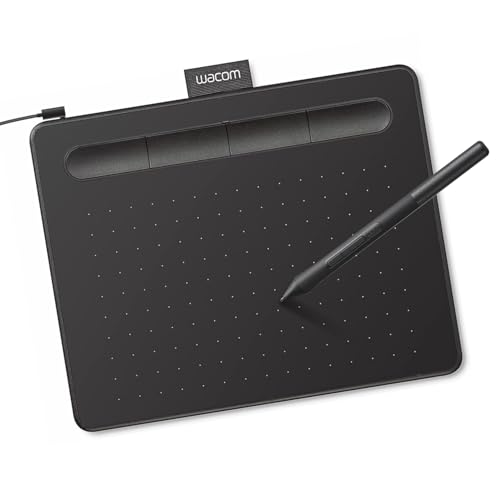
- ✓ Precise pen control
- ✓ Easy to set up
- ✓ Compatible with all software
- ✕ Small active area
- ✕ Wired connection only
| Active Area | Small (approx. 6.0 x 3.7 inches) |
| Pen Technology | Electromagnetic Resonance (EMR), battery-free pen |
| Pressure Sensitivity | 4096 levels |
| Connectivity | Wired USB connection |
| Compatibility | Works with all software supporting pen input |
| Included Software | Creative software and online training access |
Instead of the usual glossy or overly sleek designs, the Wacom Intuos Small feels surprisingly sturdy in your hand, with a matte finish that gives it a professional look without feeling bulky. The size is perfect for slipping into your bag or even your backpack, making creative sessions on the go a breeze.
The first thing you’ll notice is how comfortable the pen is—lightweight but well-balanced, with no battery to worry about. It glides smoothly across the surface, mimicking the feel of paper, which instantly cuts down your learning curve.
The tablet itself is responsive, registering every stroke with minimal lag, even during fast or intricate movements.
Setup is straightforward; plugging it in is all it takes to get started. The active area is just enough for detailed work without feeling cramped.
It works seamlessly with all your favorite software, whether you’re sketching, editing photos, or designing. Plus, the included software and training resources are a real bonus, giving you a head start on your projects.
One thing that stands out is how precise the pen is, thanks to Wacom’s industry-leading EMR tech. You can easily do fine detail work, which is crucial for professional-looking results.
The wired connection ensures no fuss with batteries or pairing issues, making it reliable for everyday use.
While it’s compact and portable, some might find the small size limiting for larger projects. Also, the lack of wireless connectivity could be a downside for those wanting more freedom of movement.
Still, for its price, these are minor trade-offs for such solid performance.
Wacom Intuos Pro Medium, Bluetooth Graphic Drawing Tablet

- ✓ Precise and natural drawing
- ✓ Wireless convenience
- ✓ Customizable shortcut buttons
- ✕ Slightly pricey
- ✕ Learning curve for shortcuts
| Active Area | 11.4 x 8.1 inches (291 x 206 mm) |
| Pen Technology | Pro Pen 3 with 8192 pressure levels, tilt support, and lag-free tracking |
| Connectivity | Wireless via Bluetooth and wired USB connection |
| ExpressKeys and Dials | 10 customizable ExpressKeys and 2 mechanical dials |
| Material and Build | Magnesium body with a thickness of 4mm, durable and sleek design |
| Compatibility | Designed for use with modern monitors and multiple computers |
You’re sitting at your desk, trying to sketch out a detailed design when you realize your old tablet just isn’t cutting it anymore. You decide to give the Wacom Intuos Pro Medium a shot, and as soon as you unbox it, you notice how sleek and sturdy it feels, with a slim profile that’s only 4mm thick.
The magnesium build makes it feel solid, yet lightweight enough to move around easily.
The Pro Pen 3 is a game-changer. It offers incredible precision with 8192 pressure levels and tilt support, making your strokes feel natural—like drawing on paper.
The different grip options, including slim, straight, or flared, really let you customize for comfort. You’ll love how lag-free the tracking is, especially when working on those intricate details.
The tablet’s 16:9 aspect ratio is perfect for multiple monitor setups, giving you a spacious active area without taking up too much desk space—11.4 by 8.1 inches. The addition of 10 customizable ExpressKeys and 2 mechanical dials means you can set shortcuts for your favorite tools, speeding up your workflow.
Plus, the wireless Bluetooth connection is seamless, letting you switch between devices without fuss.
Using it wirelessly felt liberating during long sessions, and the switch between computers was quick and hassle-free. The tactile feel of the pen on the surface closely mimics paper, which keeps your workflow smooth and natural.
Overall, this tablet balances professional-grade features with portability, making it ideal whether you’re in the studio or on the go.
Wacom Cintiq 16, Drawing Tablet with QHD Screen & Pro Pen 3

- ✓ Stunning 2.5K resolution
- ✓ Natural pen response
- ✓ Bright, accurate colors
- ✕ Pricey
- ✕ Stand not included
| Display | 16-inch IPS LCD with 2.5K WQXGA resolution (2560 x 1600) |
| Color Coverage | 99% DCI-P3 and 100% sRGB |
| Color Depth | 8-bit |
| Pen Technology | Pro Pen 3 with 8192 pressure levels and tilt support |
| Connectivity | USB-C with DisplayPort Alt Mode or Thunderbolt 3/4 |
| Adjustable Stand | Built-in fold-out legs with 20-degree tilt |
Imagine unboxing a sleek 16-inch canvas and being instantly surprised by how lightweight it feels in your hands. You expect a hefty device, but instead, it’s surprisingly nimble, almost like holding a thin tablet with a sturdy build.
The moment you flip it open, the vibrant 2.5K QHD display catches your eye—crisp, bright, and bursting with color.
What really stands out is the Pro Pen 3—its 8192 pressure levels respond so delicately that drawing feels almost like pen on paper. Tilt support adds a natural shading feel, making your strokes more expressive.
The three shortcut keys are conveniently placed, giving quick access to your favorite tools without interrupting your flow.
The colors are stunning—covering 99% DCI-P3 and 100% sRGB—so your digital art looks as vibrant and accurate as it does in real life. The adjustable stand and fold-out legs mean you can customize your workspace for comfort, whether you prefer a slight incline or a more upright position.
Connecting it to your computer is straightforward via USB-C, and it works seamlessly with both Windows and Mac. The build quality feels premium, and the display’s crisp visuals make details pop, whether you’re sketching, painting, or retouching photos.
Overall, this tablet delivers an immersive creative experience that’s hard to beat outside of Wacom’s own lineup. It’s a versatile, color-accurate tool that elevates your digital art game without the bulk of larger devices.
What Are the Best Non Wacom Tablets for Artists?
The XP-Pen Artist Pro tablets are designed for comfort and efficiency, featuring a high-resolution display and a wide color gamut that ensures stunning visual output. The customizable shortcut keys allow artists to streamline their workflow, making it easier to access frequently used functions without disrupting their creative flow.
The Gaomon PD1560 is notable for its affordability without sacrificing essential features. It includes a full HD display and 8192 levels of pen pressure sensitivity, making it suitable for a variety of artistic styles while being budget-friendly for those just starting out.
The Microsoft Surface Pro combines the capabilities of a powerful laptop with the portability of a tablet. Its ability to run full desktop applications means artists can utilize advanced software like Adobe Creative Suite while enjoying the flexibility of a touchscreen interface.
The Apple iPad Pro is renowned for its sleek design and robust performance, making it a favorite among creatives. With the Apple Pencil, it offers a natural drawing experience, and the wide range of apps available, such as Procreate, enhances its appeal for digital artists.
What Features Make a Non Wacom Tablet Stand Out?
Several features can make a non-Wacom tablet stand out in a competitive market.
- Pressure Sensitivity: High levels of pressure sensitivity allow for more precise and nuanced strokes while drawing or writing, mimicking the feel of traditional tools. Tablets with 2048 or higher levels of pressure sensitivity provide a more natural and responsive experience for artists and designers.
- Screen Quality: High-resolution displays with vibrant colors and excellent contrast enhance the visual experience, making it easier to work on detailed projects. Tablets that offer features like anti-glare screens or laminated displays can significantly reduce distractions and improve accuracy in drawing.
- Compatibility: A tablet that seamlessly integrates with different software and operating systems can greatly enhance user experience. Ensuring compatibility with popular design software like Adobe Creative Suite or Corel Painter is important for users who rely on specific programs for their work.
- Battery Life: Long battery life is essential for portability and convenience, allowing users to work for extended periods without needing to recharge. Tablets with quick charging capabilities further enhance usability, making them more appealing for on-the-go professionals.
- Build Quality: Durable materials and ergonomic designs contribute to the overall user experience, ensuring that the tablet can withstand daily use while providing comfort during long drawing sessions. Tablets that are lightweight and portable also appeal to those who need to travel frequently.
- Customizable Buttons: Having customizable shortcut buttons or touch rings allows users to streamline their workflow by accessing frequently used tools with ease. This feature can significantly enhance productivity for artists and designers, reducing the time spent navigating menus.
- Stylus Features: Advanced stylus technology, such as tilt recognition and eraser functionality, can offer a richer drawing experience. Some styluses come with additional features like programmable buttons, which can further personalize the user experience and improve efficiency.
How Does Pressure Sensitivity Affect Drawing Performance?
Pressure sensitivity significantly enhances drawing performance by allowing for more nuanced control over line thickness and opacity.
- Dynamic Line Weight: Pressure sensitivity enables artists to vary the thickness of their strokes based on how hard they press on the tablet. This mimics traditional drawing tools, providing a more natural feel and allowing for expressive lines that can change instantly with the artist’s touch.
- Opacity Control: In addition to line weight, pressure sensitivity also allows for adjustments in opacity. Artists can create softer transitions and shading effects by applying lighter pressure, resulting in a more sophisticated and layered look in their artwork.
- Enhanced Texture Creation: With pressure sensitivity, artists can simulate different textures and brush effects. For instance, by altering the pressure applied, they can create varied brush strokes that resemble traditional media, such as charcoal or watercolor, adding depth and dimension to their work.
- Improved Precision: Pressure sensitivity provides artists with greater precision when detailing their work. By controlling the force of their strokes, they can execute fine lines or bold marks with ease, allowing for intricate designs and detailed illustrations.
- Real-Time Feedback: The immediate response to pressure changes allows for a more intuitive drawing experience. Artists can see the effects of their pressure changes in real-time, which fosters a more engaging and fluid creative process, reducing the need for constant adjustments.
Which Non Wacom Tablets Offer the Best Value for Money?
The best non Wacom tablets that offer great value for money include various brands and models that cater to different needs and preferences.
- Huion Kamvas Pro 16: This tablet combines affordability with professional features.
- XP-Pen Artist 15.6 Pro: Known for its excellent color accuracy and responsive pen technology.
- Gaomon PD1560: Offers a large working area and a high-resolution display at a budget-friendly price.
- Veikk A15 Pro: A versatile and portable option that is great for beginners and casual users.
- Apple iPad with Apple Pencil: A highly portable device that doubles as a tablet for various tasks beyond drawing.
Huion Kamvas Pro 16: This tablet features a 15.6-inch display with 120% sRGB color gamut, making it ideal for digital artists seeking vibrant colors and clarity. Its responsive pen technology provides 8192 levels of pressure sensitivity, allowing for precise control and a natural drawing experience, all at a relatively low price point compared to other professional tablets.
XP-Pen Artist 15.6 Pro: With a stunning 15.6-inch full HD display, this tablet boasts 90% Adobe RGB color gamut for outstanding color representation. The included stylus supports tilt function and offers 8192 levels of pressure sensitivity, ensuring artists can create intricate details and smooth gradients without breaking the bank.
Gaomon PD1560: Featuring a 15.6-inch display with a resolution of 1920×1080, the PD1560 provides a comfortable workspace for artists. It comes with a responsive pen that also offers 8192 levels of pressure sensitivity, making it suitable for various art styles, while its affordable price makes it a favorite among budget-conscious creators.
Veikk A15 Pro: This tablet is lightweight and portable, equipped with a 10×6-inch active area and customizable shortcut keys that enhance workflow efficiency. It’s a great choice for beginners, offering decent performance and compatibility with most major software, all at a competitive price.
Apple iPad with Apple Pencil: While it may not be a traditional drawing tablet, the iPad paired with the Apple Pencil provides an exceptional drawing experience thanks to its responsive touch display and extensive range of creative apps. It is a versatile device that can be used for other tasks, making it a great investment for those looking for multifunctionality in their device.
What Are the Advantages of Using Non Wacom Tablets Over Wacom Tablets?
When comparing non-Wacom tablets to Wacom tablets, several advantages come to light:
-
Affordability: Non-Wacom tablets often provide a more budget-friendly option without sacrificing essential features. Brands like XP-Pen and Huion typically offer competitive products at lower price points, making them accessible for beginners and casual artists.
-
Diversity of Features: Many non-Wacom tablets come with unique features such as customizable buttons, varied screen sizes, and multi-touch capabilities, appealing to different artistic needs. For instance, XP-Pen’s Artist Pro series includes touch gestures that enhance navigation.
-
Compatibility: Non-Wacom tablets are often compatible with a wider range of software, including popular digital art programs like Krita and Clip Studio Paint. This flexibility allows users to choose software that better fits their workflow.
-
Stylus Options: Some non-Wacom tablets use styluses that don’t require batteries, avoiding the hassle of charging and offering a more streamlined drawing experience.
-
Innovation: Brands like Gaomon and VEIKK continuously introduce new models featuring enhanced pressure sensitivity and resolution. This commitment to innovation can lead to improved performance in artistic applications.
Choosing the right tablet ultimately depends on individual preferences and requirements, but non-Wacom options often provide great functionality and value.
How Do I Choose the Right Non Wacom Tablet for My Needs?
The Huion Kamvas Pro is designed specifically for artists with its pen display technology that offers natural pen-on-paper feel. It provides high color accuracy and a range of customizable shortcuts, making it a favorite among digital illustrators who want a budget-friendly option.
The XP-Pen Artist Pro is notable for its large drawing area and pressure-sensitive stylus, which allows artists to create intricate details with ease. It also supports multiple operating systems, making it a versatile choice for users who work across different platforms.
What Are the Common Drawbacks of Non Wacom Tablets?
Common drawbacks of non-Wacom tablets include:
- Pressure Sensitivity: Many non-Wacom tablets may offer lower levels of pressure sensitivity compared to Wacom models, often leading to less precise stroke control and more limited artistic expression.
- Driver Issues: Non-Wacom tablets can sometimes experience compatibility issues with drivers, resulting in inconsistent performance or difficulty in setup, which can frustrate users who rely on smooth functionality.
- Build Quality: The construction of non-Wacom tablets often does not match the durability and quality of Wacom products, leading to a higher likelihood of wear and tear over time, especially for professional artists.
- Software Compatibility: Some non-Wacom tablets might not be optimized for popular design software, leading to a subpar experience with lag or limited functionality that can hinder productivity.
- Stylus Quality: The styluses provided with non-Wacom tablets may not offer the same level of responsiveness, ergonomics, or pressure sensitivity as Wacom styluses, affecting the overall drawing experience.
- Customer Support: Non-Wacom brands may have less robust customer support, making it difficult for users to resolve issues or get assistance, potentially leading to prolonged downtime or frustration.
Which Non Wacom Tablets Are Best for Beginners?
The Veikk A15 is another strong contender for beginners. It offers a large drawing area and includes a battery-free pen, which keeps the experience seamless without the need for constant recharging. Its customizable buttons can help users learn shortcuts and improve their workflow.
Lastly, the Artisul D13 is an excellent choice for those who want a pen display without breaking the bank. With its vibrant screen and responsive stylus, it allows users to draw directly on the screen, providing a natural and intuitive drawing experience that closely resembles traditional methods.
Related Post: