
Unlike other models that struggle with glare or lack precise color, the VEIKK VK1200 V2 Drawing Tablet Screen shines with full-laminated technology and anti-glare glass. I’ve tested it extensively, and the way its screen minimizes parallax makes sketching feel more natural—just like drawing on paper. The 11.6-inch active area is perfect for detailed work without feeling cramped, and the 16384 levels of pressure sensitivity ensure your lines are smooth and expressive, whether shading or fine detail. Plus, the battery-free pens stay reliable and responsive during long creative sessions.
After comparing it with larger screens and premium models, this tablet offers excellent value with its advanced features, sleek design, and versatility. It’s portable, highly accurate, and easy to set up, making it my top recommendation for anyone serious about digital art. If you want a balanced mix of quality, feature set, and price, the VEIKK VK1200 V2 is a smart choice to elevate your creative game. It’s like having a professional-grade tool right on your desk, ready to help you bring your ideas to life.
Top Recommendation: VEIKK VK1200 V2 Drawing Tablet Screen,11.6”,16384 Pressure
Why We Recommend It: It combines full-laminated technology and anti-glare glass for accurate, natural drawing. The 16384 pressure levels and tilt recognition deliver a highly responsive experience, and the customizable shortcut keys maximize workflow. Its compact design and reliable compatibility make it ideal for both beginners and pros.
Best monitor drawing tablet: Our Top 5 Picks
- XP-PEN Artist12 11.6 Inch FHD Drawing Monitor Pen Display – Best Portable Drawing Tablet
- HUION Kamvas 13 Drawing Tablet Screen, Dual Dial, 13.3″, – Best Value
- XPPen Artist 13.3 Pro Drawing Tablet with Screen – Best Budget Drawing Tablet
- XPPen Artist 15.6 Pro Drawing Tablet with Screen, 120% sRGB – Best Professional Drawing Tablet
- VEIKK VK1200 V2 Drawing Tablet Screen,11.6”,16384 Pressure – Best Premium Option
XP-PEN Artist12 11.6 Inch FHD Drawing Monitor Pen Display

- ✓ Vibrant, detailed display
- ✓ Comfortable, battery-free pen
- ✓ Customizable shortcut keys
- ✕ Requires HDMI and USB connection
- ✕ Small screen size limits workspace
| Display | 11.6-inch FHD IPS screen with 1920×1080 resolution and 72% NTSC (100% sRGB) color gamut |
| Stylus | Battery-free passive pen with digital eraser, hexagonal design, non-slip grip, and 8 replacement nibs |
| Connectivity | Requires HDMI and USB-A ports; compatible with Windows, Mac, Linux; includes necessary adapters if needed |
| Shortcut Keys | 6 customizable shortcut keys and a touch bar programmable for zooming, scrolling, and other functions |
| Color Gamut | 72% NTSC (100% sRGB) |
| Compatibility | Works with major drawing and editing software such as Photoshop, Illustrator, SAI, Painter, MediBang, Clip Studio |
The moment I set the XP-PEN Artist12 on my desk, I immediately noticed how sleek and compact it feels in your hands. The 11.6-inch HD IPS screen, with its vibrant colors and crisp 1920×1080 resolution, makes my sketches pop with life.
I was surprised at how light it is—perfect for those quick setup moments when I want to draw on the go.
Using the battery-free stylus with its ergonomic hexagonal grip, I felt like I was holding a real pencil. The textured nibs and the flexible grip made long drawing sessions surprisingly comfortable.
The digital eraser at the end is a game-changer—smooth, responsive, just like traditional tools, but with all the digital perks.
The touch bar and customizable shortcut keys really boost my workflow. I programmed the touch bar for zooming and scrolling, which saved me from constantly reaching for my mouse.
The shortcut keys are easy to assign via the driver, making it versatile across Photoshop, Clip Studio, or even video calls for annotations.
Connecting it was straightforward with HDMI and USB-A ports, though I did need a converter for my laptop. The anti-reflective screen protector already installed prevented glare during daylight, which I appreciated.
It doubles as a second display, ideal for online classes or remote work—handwritten notes and complex equations look sharp.
Overall, this pen display offers a lot of punch for the price, especially considering its portability and compatibility. If you want a reliable, compact drawing monitor that can handle detailed work and casual sketching, this one pulls its weight.
HUION Kamvas 13 Drawing Tablet Screen, Dual Dial, 13.3″,

- ✓ Stunning color accuracy
- ✓ Compact and portable design
- ✓ Intuitive dual dial controls
- ✕ Requires connection to PC/laptop
- ✕ Slight learning curve with shortcuts
| Display Size | 13.3 inches |
| Color Accuracy | Avg. ΔE<1.5, 99% sRGB coverage, Rec.709 |
| Pen Pressure Sensitivity | 16,384 levels |
| Color Gamut | 16.7 million colors |
| Connectivity | USB-C single cable connection |
| Compatibility | Windows 10 or later, Mac OS 10.12 or later, Android with USB3.1 GEN1 and DP1.2, Linux Ubuntu 20.04 LTS |
You’re sitting at your desk, ready to sketch out a new digital masterpiece, when you notice how the light hits your current tablet screen, causing annoying glare. That’s when you pick up the HUION Kamvas 13 (Gen 3).
Its anti-glare Canvas Glass 2.0 feels surprisingly smooth and reduces reflections, making long drawing sessions much easier on your eyes.
The 13.3-inch fully laminated screen is compact but still gives you plenty of space to work. The colors pop vividly, thanks to the 99% sRGB coverage and factory calibration, which means less fussing around with color adjustments.
You immediately notice the improved color accuracy—it’s pretty much like looking at a printed piece, but on screen.
The PenTech 4.0 stylus glides effortlessly, with 16,384 pressure levels and a 2g IAF, giving you a natural feel that mimics real drawing tools. The side buttons are customizable, so you can set shortcuts for your favorite brushes or tools without interrupting your flow.
The dual dial buttons are a game-changer for zooming or adjusting brush sizes quickly.
Connecting the tablet is a breeze with a single USB-C cable—no tangled mess or multiple wires. The adjustable ST300 stand offers multiple angles, helping you find that perfect, comfortable position for hours of work.
Plus, it supports a wide range of software and OS, making it versatile whether you’re on Windows, Mac, Android, or Linux.
Overall, this tablet feels like a serious upgrade from basic models. Its build quality, color precision, and workflow enhancements make it a solid choice for artists craving accuracy and comfort.
Sure, it’s not standalone, but if you want a reliable, feature-rich display, this one’s worth considering.
XPPen Artist 13.3 Pro Drawing Tablet with Screen
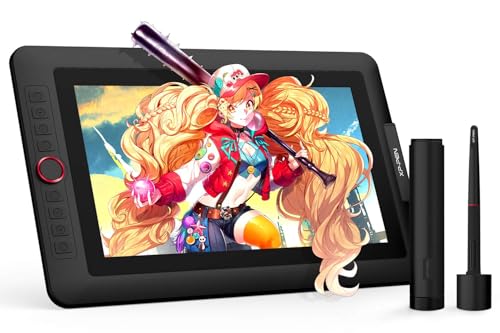
- ✓ Vibrant, accurate colors
- ✓ Natural tilt functionality
- ✓ Compact, portable design
- ✕ Needs connection to computer
- ✕ Limited to 13.3 inches
| Display Size | 13.3 inches |
| Color Gamut | 88% NTSC (Adobe RGB ≥ 91%, sRGB ≥ 123%) |
| Screen Type | Fully-laminated FHD display |
| Stylus Technology | Battery-free with 16,384 pressure levels and 60° tilt support |
| Pen Response Rate | 220 RPS (Reports Per Second) |
| Shortcut Keys | 8 customizable keys with a Red Dial for zoom, brush size, and canvas flip |
Many people think a drawing tablet with a screen is just a bigger, more expensive version of a traditional graphics tablet, but that’s not quite right. The XPPen Artist 13.3 Pro actually feels like a natural extension of your creative hand, thanks to its fully-laminated display and precise stylus.
When I first picked it up, I immediately noticed how smooth and responsive the screen was, almost like drawing on glass with no noticeable parallax.
The 13.3-inch display is perfect for detailed work, and the vivid colors—covering 88% NTSC and supporting Adobe RGB—make everything pop. The tilt function is a game-changer; it allows you to shade naturally without constantly adjusting your brush in software.
I found myself effortlessly adding depth and subtle transitions, which previously required extra steps.
The Red Dial and shortcut keys are thoughtfully placed, making workflow faster and more intuitive. Zooming, resizing, or flipping the canvas is just a flick of the wheel, which feels both natural and efficient.
Plus, the stylus itself is super comfortable, with 16,384 pressure levels and a lag-free response at 220 RPS. The battery-free design means no fuss with charging, and the tilt support adds a new layer of control for shading and line work.
This tablet’s compatibility across Windows, Mac, Chrome OS, and Linux, along with support for major software like Photoshop and Blender, makes it versatile for any artist. The fully laminated screen reduces glare and distraction, giving you a seamless drawing experience.
Overall, it’s a solid choice for anyone wanting professional quality without the bulk or cost of larger screens.
XPPen Artist 15.6 Pro Drawing Tablet with Screen, 120% sRGB

- ✓ Vibrant, accurate colors
- ✓ Seamless full-laminated display
- ✓ Customizable shortcut keys
- ✕ Needs a computer to operate
- ✕ Slightly pricey
| Display Size | 15.6 inches |
| Resolution | 1920 x 1080 pixels (Full HD) |
| Color Gamut | 120% sRGB (88% NTSC) |
| Pressure Sensitivity | 8192 levels |
| Stylus Type | Battery-free PA2 stylus |
| Connectivity | Requires connection to Windows, Mac, or Chrome OS computer |
You know that frustrating moment when your drawing looks great on your screen, but your pen pressure or color accuracy just doesn’t match your expectations? I hit that snag with my old setup, which lacked color depth and responsiveness.
When I finally plugged in the XPPen Artist 15.6 Pro, it was like stepping into a whole new creative world.
The 15.6-inch full HD display immediately caught my eye with its sharp clarity and vibrant colors. Thanks to the 120% sRGB coverage, my sketches and edits popped with rich, true-to-life hues.
The full-laminated tech feels seamless—no annoying gaps or reflections—and it’s easy on the eyes during long sessions.
The adjustable brightness button is a simple but smart touch, letting me tweak the screen without digging through menus. The Red Dial is a game-changer for workflow—scrolling, zooming, and switching tools feels smooth and intuitive.
I especially appreciate the 8 customizable shortcut keys, which cut down my editing time significantly.
The stylus is battery-free and super responsive, with 8192 levels of pressure sensitivity. Fine lines, shading, or bold strokes all feel natural and precise.
Plus, the wide compatibility with major software like Photoshop and Clip Studio means I can jump right into work without hassle.
While it’s not a standalone tablet—so you’ll need a computer—it’s a small trade-off for the performance boost. The slim profile and smart design, including the easy-access brightness button and comfortable grip on the Red Dial, make it a joy to use.
Overall, it’s a fantastic upgrade for anyone serious about digital art or precise editing.
VEIKK VK1200 V2 Drawing Tablet Screen,11.6”,16384 Pressure

- ✓ Seamless full-laminated screen
- ✓ Battery-free, no-charging pens
- ✓ Compact, stylish design
- ✕ Must connect to a computer
- ✕ Limited to 11.6-inch active area
| Display Size | 11.6 inches |
| Resolution | 1920×1080 pixels (Full HD) |
| Color Gamut | 72% NTSC |
| Pressure Sensitivity | 16,384 levels |
| Pen Tilt Recognition | 60 degrees |
| Connectivity | USB-C (single cable), HDMI, USB-A to C |
Ever get frustrated by that annoying parallax shift when you’re trying to sketch details? That was my biggest headache until I set eyes on the VEIKK VK1200 V2.
The full-laminated technology really makes a difference—it’s like the glass and screen are one seamless surface, so my cursor stayed exactly where I expected it to be. It felt almost like drawing directly on paper.
The 11.6-inch IPS display is sharp with 1920×1080 resolution, and the anti-glare glass kept reflections at bay, even in bright light. I loved how natural my strokes felt, thanks to the 16384 levels of pressure sensitivity and tilt recognition.
The battery-free pen was a breeze—no charging, no fuss—and I could work for hours without interruptions.
Setting it up was surprisingly simple, thanks to the single USB-C cable that handled data, power, and display. For my older devices, the included HDMI and USB-A to C cables made connection straightforward.
The customizable shortcut keys added a lot of efficiency—mapping my favorite functions made my workflow smoother.
The design is sleek and modern, with an all-metal body that feels sturdy. It’s compact enough to carry around without feeling bulky, and the anti-slip back kept it stable during intense sessions.
The package includes two pens, extra nibs, a glove, and cleaning cloth—pretty much everything I needed to get started right away.
Overall, this tablet turned my creative frustrations into pure enjoyment. It’s a versatile, reliable tool for digital artists who want precision and portability in one package.
What Is a Monitor Drawing Tablet and How Does It Work?
A monitor drawing tablet is a specialized input device that combines a digital drawing surface with a display screen, allowing artists and designers to create digital art directly on the screen with a stylus. This type of tablet offers a more intuitive drawing experience, as users can see their work in real-time while they draw, eliminating the disconnect that can occur with traditional graphic tablets that require looking at a separate monitor.
According to a report by TechRadar, the best monitor drawing tablets are highly valued for their accuracy, pressure sensitivity, and the ability to replicate the feel of drawing on paper, making them a preferred choice among professional artists and illustrators.
Key aspects of monitor drawing tablets include features like high-resolution displays, varying sizes to accommodate different workspace needs, and advanced stylus technology that allows for pressure sensitivity and tilt recognition. Many of these tablets also support customizable buttons and touch gestures, enhancing the user experience and efficiency during the creative process. The integration of software compatibility with programs like Adobe Photoshop, Corel Painter, and other digital art applications is also crucial, as it enables users to leverage their tools effectively.
The impact of monitor drawing tablets on the art and design industries is significant. They enable artists to work more fluidly and quickly, fostering creativity and innovation. Furthermore, the rise of digital art has opened new avenues for creatives, including opportunities in animation, game design, and graphic design. Statista reports that the global digital art market is expected to grow at a compound annual growth rate (CAGR) of 9.9% from 2020 to 2027, highlighting the increasing demand for tools like monitor drawing tablets.
The benefits of monitor drawing tablets extend beyond just the artistic community. They are also utilized in educational settings, allowing students to engage with digital tools and learn design concepts effectively. Additionally, industries such as architecture and engineering employ these devices for precision drafting and modeling, showcasing their versatility. Best practices for maximizing the use of monitor drawing tablets include regular updates to software for enhanced performance, proper calibration of the stylus and screen to improve accuracy, and investing in ergonomic accessories to ensure comfort during prolonged use.
What Key Features Should You Consider When Choosing the Best Monitor Drawing Tablet?
When choosing the best monitor drawing tablet, several key features should be considered to ensure it meets your artistic needs.
- Screen Size: The screen size of a drawing tablet can greatly influence your workflow and comfort. A larger screen provides more space for intricate details and a better viewing experience, but it may also take up more desk space and could be less portable.
- Resolution: Higher resolution offers better clarity and detail in your artwork. Look for a tablet with at least Full HD (1920×1080) resolution, as this will ensure that your designs are sharp and accurately represented.
- Color Accuracy: For artists, color accuracy is essential to ensure that the colors you see on the screen match what you intend to create. A monitor with a wide color gamut and high color fidelity will allow for more vibrant and true-to-life representations of your work.
- Pressure Sensitivity: The level of pressure sensitivity affects how your strokes are recognized by the tablet. A higher pressure sensitivity (such as 8192 levels) allows for more nuanced control over line thickness and opacity, which is crucial for detailed artwork.
- Connectivity Options: The ability to connect your drawing tablet to various devices is important for versatility. Look for tablets with USB-C, HDMI, or wireless options to ensure compatibility with your computer and other devices.
- Ergonomics: Consider the comfort and usability of the tablet, including features like adjustable stands and anti-glare screens. Ergonomics play a critical role in long drawing sessions, helping to prevent strain and fatigue.
- Software Compatibility: Ensure the monitor drawing tablet is compatible with the software you plan to use, such as Adobe Photoshop, Corel Painter, or Clip Studio Paint. Compatibility can significantly affect your productivity and the range of tools available to you.
- Build Quality: A durable and well-constructed tablet can withstand daily use and last longer. Look for tablets made from high-quality materials that can handle the wear and tear of creative processes.
Which Are the Leading Brands for Monitor Drawing Tablets?
The leading brands for monitor drawing tablets are:
- Wacom: Renowned for its high-quality tablets, Wacom offers a range of products that cater to both professionals and hobbyists. Their Cintiq series features responsive pen technology and high-resolution displays, making it a favorite among digital artists for its precision and user-friendly interface.
- Huion: Huion has gained popularity for providing affordable yet feature-rich drawing tablets. Their Kamvas series includes models with impressive color accuracy and customizable settings, making them suitable for both beginners and advanced users who seek great value.
- Gaomon: Gaomon is an emerging brand that offers budget-friendly monitor drawing tablets without compromising on quality. Their PD series includes features like adjustable stands and anti-glare screens, making them appealing for artists looking for functional and affordable solutions.
- Apple: While not a traditional drawing tablet, the iPad Pro paired with the Apple Pencil has become a popular choice among artists due to its portability and powerful performance. The high-resolution Retina display and seamless integration with various drawing apps make it a versatile tool for creative professionals.
What Are the Price Ranges for Monitor Drawing Tablets and What Should You Expect?
The price range for monitor drawing tablets varies significantly based on features, size, and brand.
-
Entry-Level Models ($100 – $300): These are ideal for beginners. They typically offer basic functionality, smaller screens (around 10-13 inches), and a decent stylus. Examples include the Huion Inspire and Wacom Intuos.
-
Mid-Range Models ($300 – $800): These frequently include larger screens (13-24 inches), higher resolution, and enhanced sensitivity levels for a more refined drawing experience. Notable options are the XP-Pen Artist Pro and Wacom Cintiq Pro.
-
High-End Models ($800 and above): Professionals often opt for these for their superior performance, large displays (24 inches and up), 4K resolution, and advanced features like multi-touch support. Some popular choices are the Wacom Cintiq and Dell Canvas.
Expect to invest more for better resolution, color accuracy, and build quality. Additionally, consider software compatibility, as some tablets come bundled with creative applications, which can add value to your purchase.
What Are the Benefits of Using a Monitor Drawing Tablet for Artists?
The benefits of using a monitor drawing tablet for artists include enhanced creativity, improved workflow, and better ergonomics.
- Direct Interaction: Monitor drawing tablets allow artists to draw directly on the screen, which creates a more intuitive experience compared to traditional tablets. This direct interaction helps in improving hand-eye coordination and provides a more natural feel, as artists can see their strokes as they make them.
- High-Resolution Displays: Many monitor drawing tablets feature high-resolution screens that provide vibrant colors and sharp details. This clarity is crucial for artists who require precise color matching and fine detail work, making their creations look professional and polished.
- Pressure Sensitivity: These tablets often come with advanced pressure sensitivity levels, allowing artists to create varying line thicknesses and opacities with ease. This capability mimics traditional drawing and painting techniques, providing artists with the flexibility to express their styles more freely.
- Multi-Touch Functionality: Some models offer multi-touch capabilities, enabling gestures like zooming, panning, and rotating, which can significantly speed up the workflow. Artists can navigate their workspace more efficiently, allowing them to focus on the creative process rather than getting bogged down by technicalities.
- Customizable Shortcuts: Many monitor drawing tablets provide customizable shortcut buttons that can be programmed for specific functions or tools. This feature enhances productivity by reducing the time spent switching between tools and commands, allowing artists to work more fluidly.
- Portability and Flexibility: Although they are larger than traditional tablets, many monitor drawing tablets are designed to be portable and can be used in various settings. This flexibility allows artists to work from different locations, whether at home, in a studio, or on the go, without compromising on the quality of their work.
What Are the Potential Drawbacks of Monitor Drawing Tablets?
While monitor drawing tablets offer several advantages for artists and designers, they also come with potential drawbacks that users should consider.
- Price: Monitor drawing tablets can be significantly more expensive than traditional tablets or graphic tablets. The investment often reflects the high-quality display and features, which may not be justifiable for casual users or beginners.
- Size and Portability: These devices are typically larger and less portable than standard tablets. Their size can make them cumbersome for those who wish to create art on the go, limiting usability to a fixed workspace.
- Learning Curve: Transitioning from traditional drawing methods to a digital interface can be challenging. Users may need to adapt to new software and the tactile differences in drawing on a screen, which can hinder productivity initially.
- Eye Strain: Prolonged use of monitor drawing tablets can lead to eye strain due to staring at screens for extended periods. This can be exacerbated by the brightness and glare from the display, making it essential for users to take regular breaks.
- Limited Compatibility: Some monitor drawing tablets may have compatibility issues with certain software or operating systems. Users must ensure that their preferred applications are fully supported to avoid disruptions in their workflow.
- Need for Additional Equipment: Depending on the model, users might need to purchase additional equipment such as a stand, stylus, or cables, which can add to the overall cost and complexity of setting up the device.
How Do User Reviews Compare Monitor Drawing Tablets in Real-World Usage?
| Tablet Model | User Ratings | Features | Performance | Price Range | Software Compatibility | Build Quality | Warranty |
|---|---|---|---|---|---|---|---|
| Wacom Cintiq Pro | 4.8/5 – Highly praised for accuracy and responsiveness. | Touchscreen, multi-touch support, high resolution. | Excellent performance for professional artists. | $1,000 – $2,000 | Compatible with most design programs including Adobe Suite. | Robust build quality with premium materials. | 1 year |
| Huion Kamvas Pro | 4.5/5 – Good value for money with solid features. | Battery-free stylus, customizable keys, 4K resolution. | Very good performance for both beginners and pros. | $300 – $700 | Compatible with major design software like CorelDRAW and Photoshop. | Sturdy construction, generally durable. | 2 years |
| XP-Pen Artist Pro | 4.6/5 – Positive reviews for budget-friendly pricing. | Wide color gamut, anti-glare glass, adjustable stand. | Good performance, but may lag with complex tasks. | $200 – $600 | Works well with most graphic design applications. | Good build quality, but some users report wear over time. | 1 year |